
Automatic Check-ins
Ask people a recurring question on a schedule, collect every answer on one page, and pause a question or opt out when you need to.
Check-ins ask people the same question on a schedule, such as "What did you work on today?" or "Anything blocking you this week?", and collect the answers on one page in the project. They can stand in for a status meeting: everyone answers when it suits them, and everyone on the project can read along.
Turning on Check-ins
Check-ins starts switched off in a new project. To turn it on:
- Open the project and click Add a tool below the project's tools
- Choose Check-ins
You can also turn it on in the project's settings, under Tools. See Creating and Setting Up a Project. If an admin has restricted who can edit project details, only owners, admins and the project's creator can change the tools (see Permissions).
Asking a question
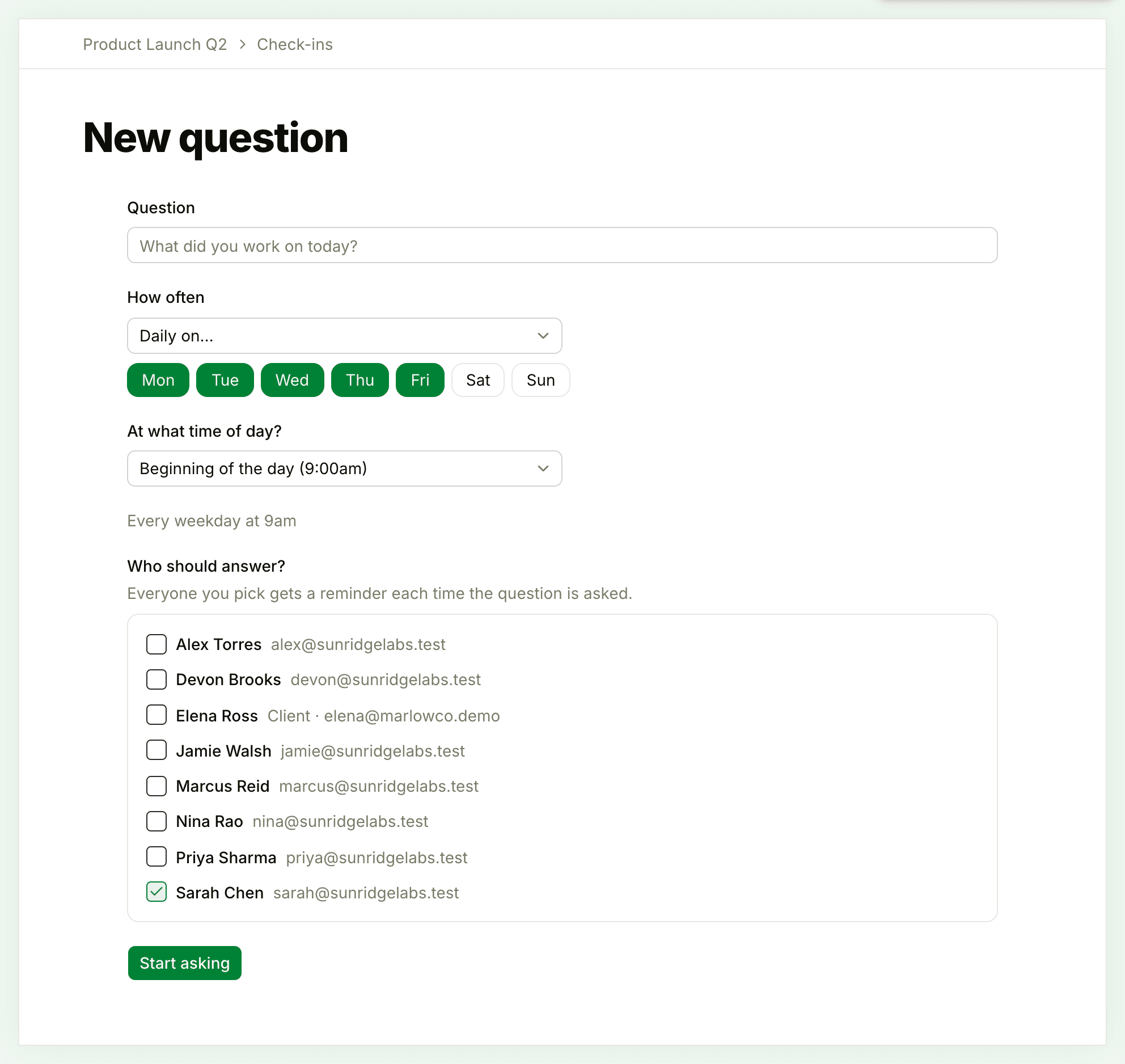
- Open Check-ins in the project and click New question
- Type the question under Question
- Under How often, choose Daily on…, Once a week on…, Every other week on…, or Once a month on the first…, then pick the day. A daily question can go out on any mix of days, weekends included
- Under At what time of day?, choose Beginning of the day (9:00am), End of the day (4:30pm), or Let me pick a time… to set your own
- Under Who should answer?, tick everyone you want to ask. The list shows the people on the project (on a project that's open to everyone, the whole team). You're ticked to start with
- Click Start asking
The line above Who should answer? spells out the schedule as you build it, for example "Every weekday at 9am".
The first ask goes out at the next scheduled time, never the moment you save. A daily 9:00am question created in the afternoon is first asked the following morning.
The time is in the time zone of whoever created or last edited the question: the one in their profile, or their browser's if they haven't set one. Everyone is asked at that same moment, so a 9:00am question set up in New York reaches a teammate in London at 2:00pm.
Only people on the team can create and edit questions. If the project works with clients, the new question form also has a Visible to clients switch. Turn it on to let clients on the project see the question and its answers and answer it themselves. Clients appear under Who should answer? only while the question is visible to clients. To change this later, use Share with clients or Hide from clients in the question's ••• menu. See What Clients Can See and Do.
Answering
When it's time to answer, everyone asked gets a notification in Chats + Notifications ("Time to answer this check-in"), and an email titled "Check-in:" followed by the question, with a Write up an answer button. Whether the email arrives depends on each person's notification settings.
To answer:
- Open the question, from the notification or from Check-ins in the project
- Write your answer in the box under the question. It has the full formatting toolbar, so you can add lists, images, files and voice notes (see Formatting Text)
- Click Post answer
Your answer for is set to today. To answer for a day you missed, change the date before you post. Next to Post answer, Thicket shows the people who'll be notified when you post.
Anyone who can see the question can answer it, whether or not they were asked.
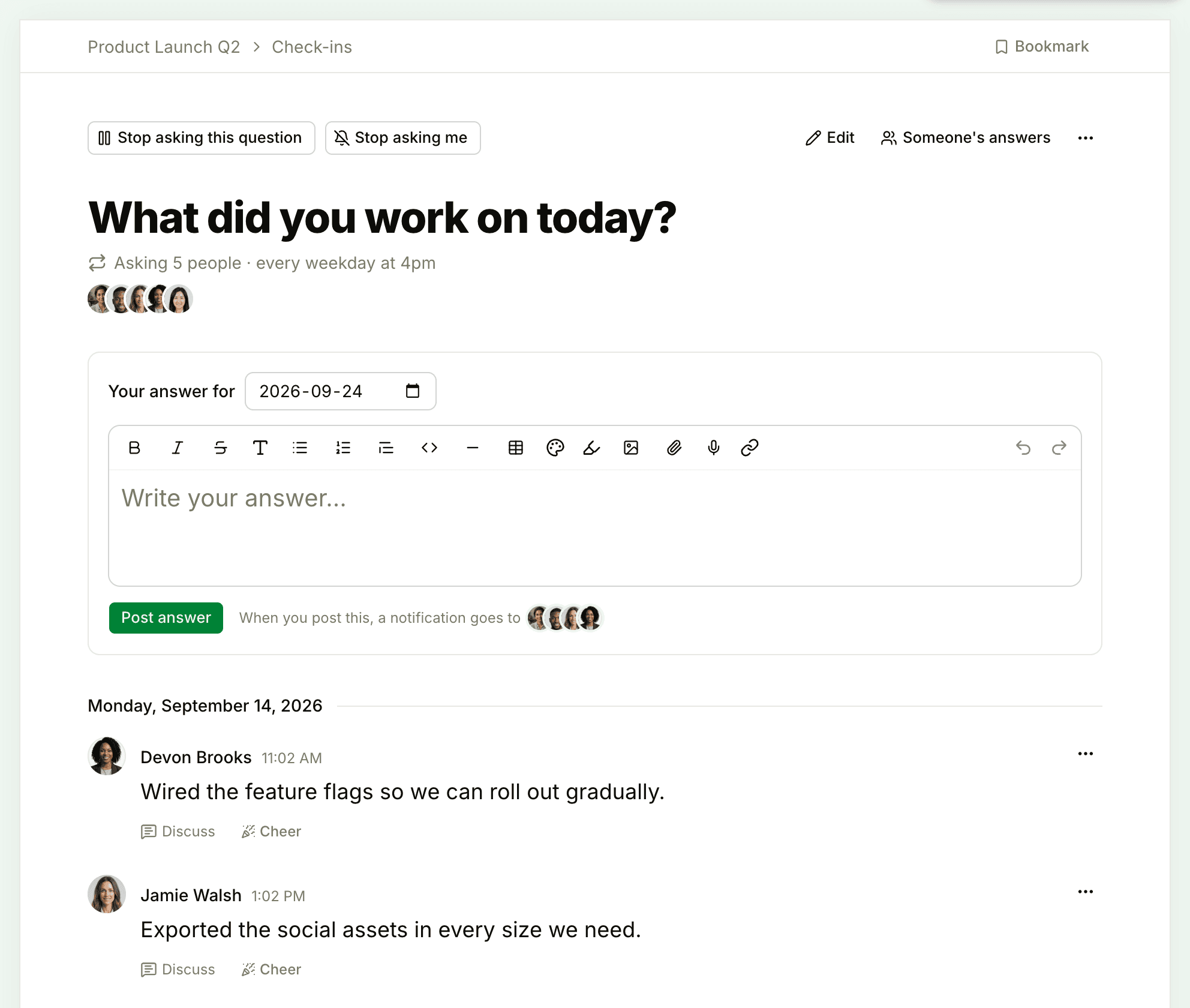
Answers are grouped by day, newest day first. Under each answer:
- Discuss opens the answer on its own page, where people can comment on it (see Comments and References)
- Cheer adds a quick reaction (see Cheers)
To change or remove your answer, click the ••• beside it and choose Edit or Put in the trash. Only you can edit your answer. Owners and admins can put anyone's answer in the trash.
Reading answers
The Check-ins page lists each question with how many people it asks, its schedule, and a count of answers. When answers came in during the last 24 hours, the list says how many.
To read one person's answers, click Someone's answers at the top of the question and pick a name, or click a person's name beside any of their answers. You'll see all of their answers to that question, newest first.
To read answers from every project at once, open Everything in the sidebar and choose All check-ins. See See Everything in Your Projects.
Who's notified about answers
The people you ask are subscribed to new answers automatically, and so is the person who created the question. The box at the bottom of the question lists who's notified. Click Don't notify me to stop hearing about new answers, or Add/remove people… to change who does. See Following and Unfollowing Discussions.
Pausing, editing and deleting a question
These controls sit at the top of the question:
- Stop asking this question pauses it for everyone. The question then reads "This check-in is paused, nobody is being asked." Click Resume asking to start again. The same switch is on the question's edit page
- Stop asking me stops the reminders for you alone, and you still hear about new answers. Click Start asking me again to rejoin
- Edit changes the question, the schedule, the time and who's asked. People you add are told they'll be asked and are subscribed to new answers. People you remove stop being asked, but they keep getting answer notifications until they click Don't notify me
The ••• menu has the rest: Copy link, Move to another project…, Copy to a project…, Archive and Put in the trash. Moving and copying are covered in Moving and Copying, and restoring a trashed question in Archiving, Trash, and Restoring.
Questions are only asked in active projects. A question in an archived project, or in a project template, is never asked.