
Calendar and Events
Add events to a project's calendar, set up repeating events and reminders, and follow Thicket events from your own calendar app.
Every project has a Calendar for its meetings, deadlines, and milestones. The Calendar in the sidebar puts every project's events on one screen, along with events that belong to your whole organization rather than to one project.
The Project Calendar
Open a project and click its Calendar card. The calendar shows six weeks at a time, starting with the current week. Scroll down to load the weeks after that. The arrows above the grid jump back or forward six weeks, and Today brings you back to the current week.
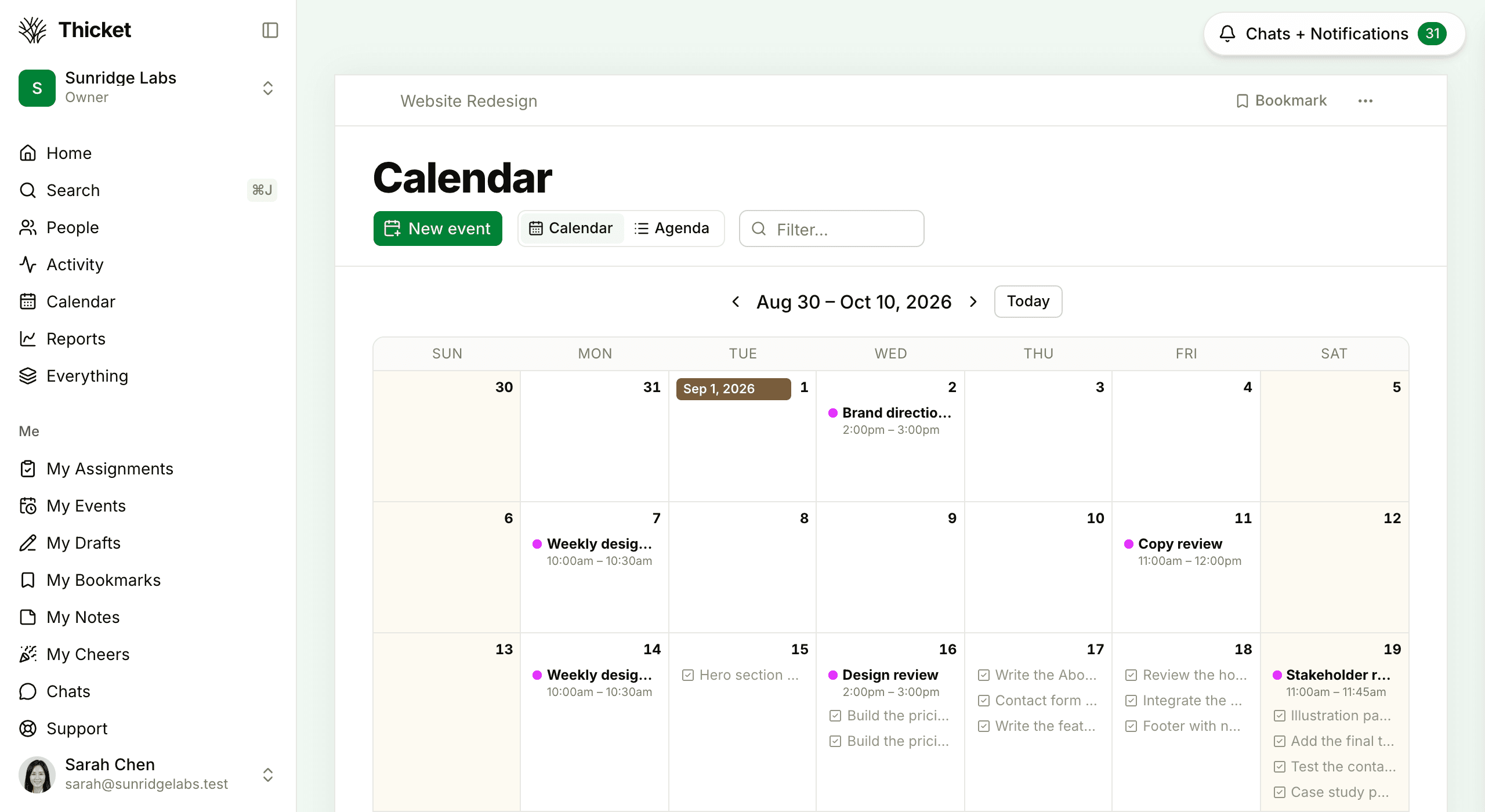
Two views sit above the grid:
- Calendar shows the weeks as a grid, with each event on its day. Events that span several days stretch across them.
- Agenda lists what's coming day by day.
Thicket remembers the view you used last. Type in Filter… to show only the items whose names contain what you type.
Besides events, a project calendar shows the project's unfinished to-dos and cards that have a due date. To show events only, open the calendar's ••• menu, choose Choose what to show…, and pick Events only. This applies to everyone's view of this project's calendar.
Adding an Event
- Click New event (or press Shift+M). On a computer, you can also click an empty spot on a day in the grid to start an event on that date.
- Type the name of the event. You can include the time in the name, such as "Team call Friday at 10am", and Thicket fills in the date and time for you.
- Set when it Starts and, optionally, when it Ends. For a day-long event or one spanning several days, switch on All day and pick the From and To dates.
- Under Invite people, type names to add the people involved. You're added automatically. You can pick a group to add all its members at once. Only people who can see the calendar you picked are offered: on an invite-only project, the people on it.
- Add any extras:
- Link: a video call link, such as Zoom or Meet. The event page then shows a Join button.
- Repeat: see Repeating Events.
- Notes: details, agendas, or attachments.
- Circle event: draws a circle around the event on the calendar, so a key date stands out.
- Click Add this event.
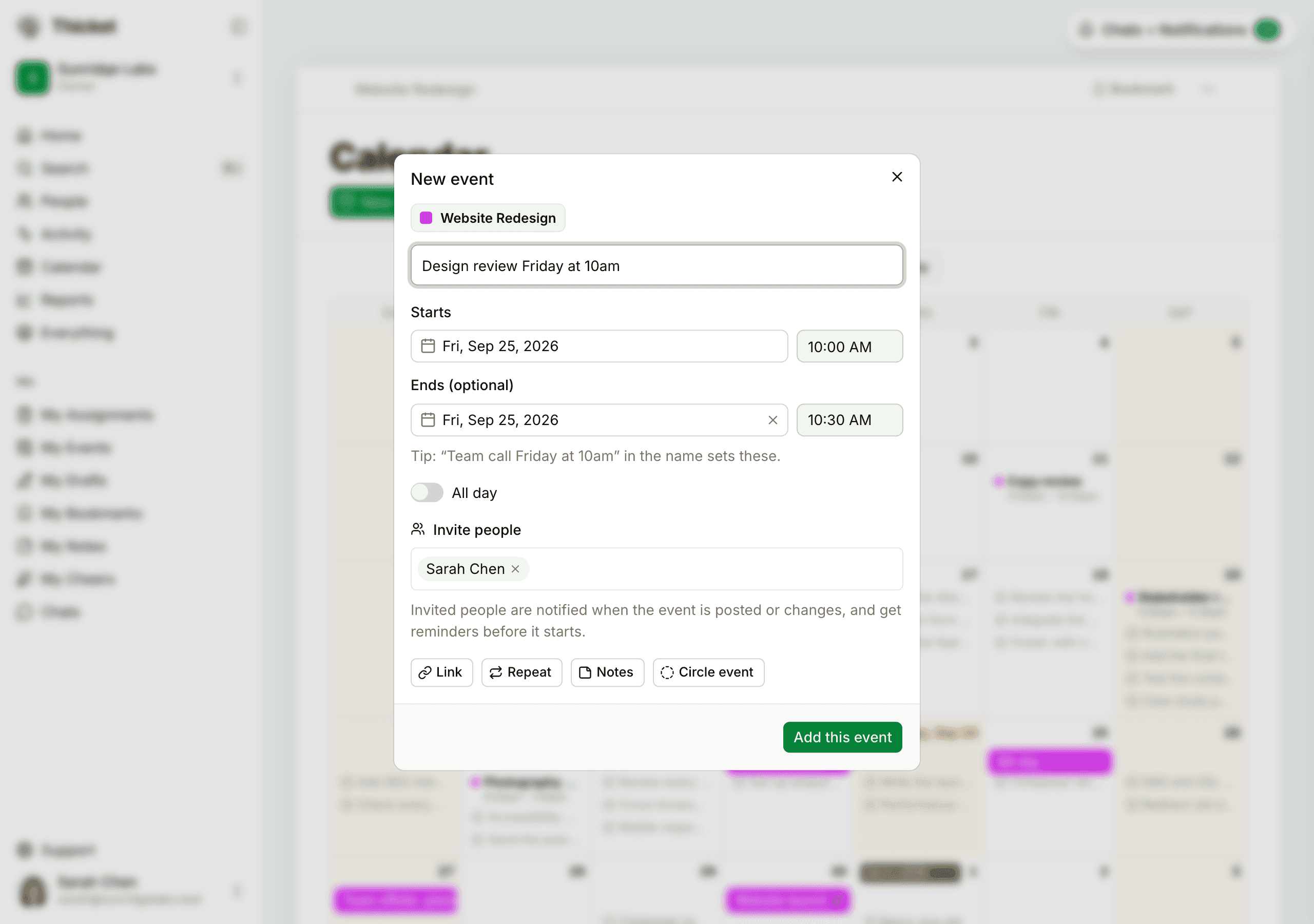
Invited people are notified when the event is posted and whenever it changes, and they get reminders before it starts.
Repeating Events
Click Repeat in the event form and choose how often from Repeats:
- Every day, Every weekday (Mon–Fri), Every week on that weekday, Every other week, Every month on the same date or the same weekday of the month (for example, the second Tuesday), or Every year.
- Weekly custom…: every so many weeks, on the days you tick.
- Monthly custom…: every so many months, on the date or the weekday you choose.
Then choose whether it repeats Forever or Until a date.
To change a repeating event, open the day you want to change and click Edit. When you save, Thicket asks whether the change is for that day or that day onward: No, just change this event changes only that day, and Yes, change future occurrences too changes it and every day after it. Changing how the event repeats always applies from that day on. A day you change on its own becomes an event of its own, with its own notes, invited people, and comments, and its page links back to the repeating event.
To delete one day, open it, choose Put in the trash from its ••• menu, and pick Only delete this event. Also delete all future events deletes that day and every day after it. Either way, what you deleted goes to the trash with its date, and the message that appears has an Undo button. Restoring a deleted day from the trash puts it back into the repeating event.
The Event Page
Click an event to open it. The page shows when it happens (with your time zone), how it repeats, who's invited, and its notes. From here you can:
- Click Add to my calendar… to download the event for your own calendar app.
- Click Join to open the call link, when there is one.
- Cheer, comment, and choose who's notified about new comments.
- Click Edit to change anything about the event. Clients don't see this button.
The ••• menu has Copy link, Move to another calendar…, Copy to another calendar…, Close comments (for the person who added the event and for owners and admins), Remind me…, View change log, Who was notified…, Archive, and Put in the trash. Moving and copying can send an event to another project's calendar or to the account calendar. On a project that works with clients, it also has Share with your client company or Make it team only (see What Clients Can See and Do).
The Calendar for All Your Projects
Click Calendar in the sidebar to see events from every project you're on.
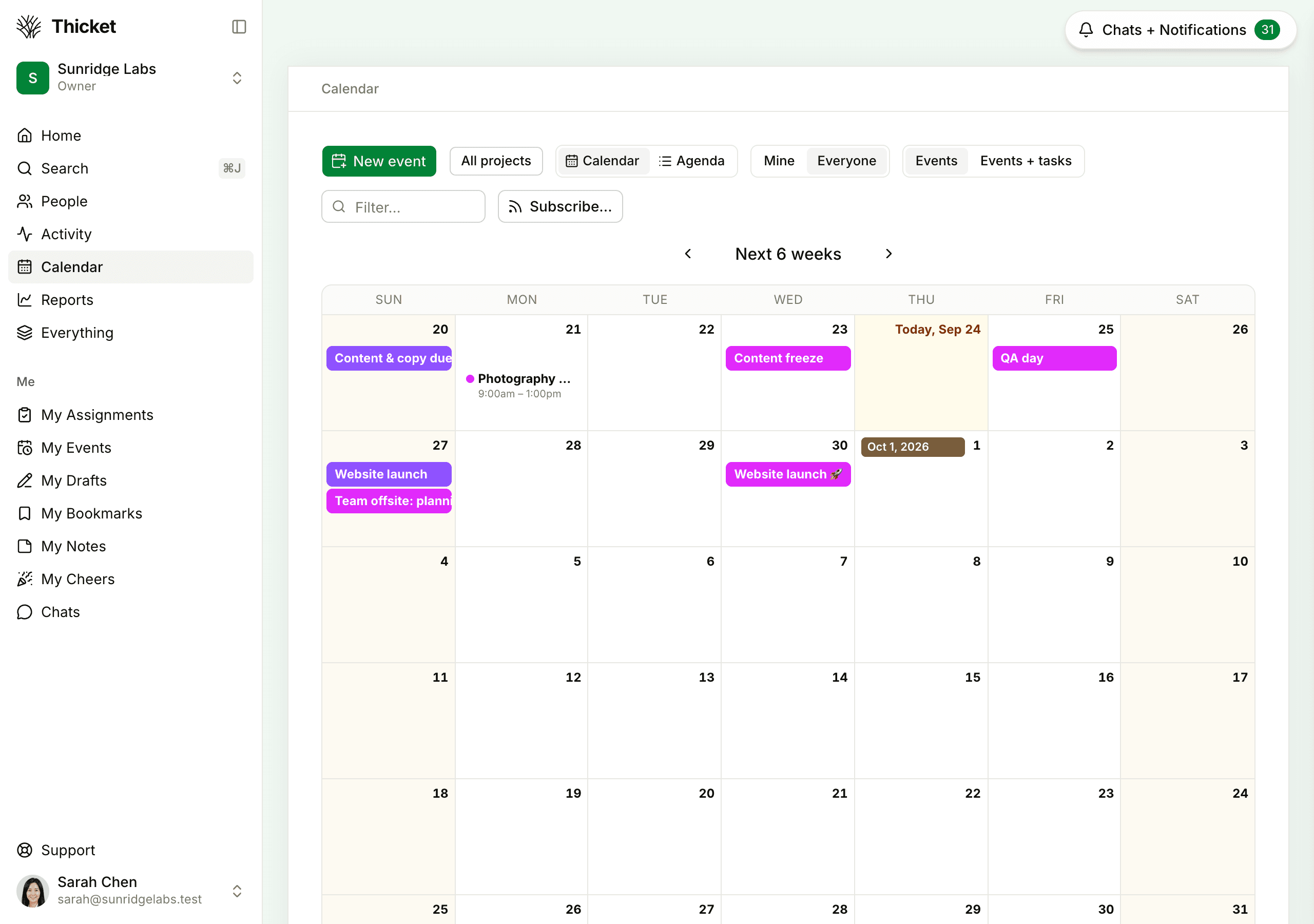
The buttons above the grid control what you see:
- All projects opens a list of your projects. Click projects to show only their events, or choose Starred projects. The list also includes the Account calendar.
- Mine shows only events you added or were invited to, and work assigned to you. Everyone shows it all.
- Events shows events only. Events + tasks adds unfinished to-dos and cards that are due.
When you click New event here, the colored chip at the top of the form sets where the event goes: a project's calendar or the Account calendar. Account calendar events belong to no project and are visible to everyone in your organization except clients, which suits company holidays and all-hands meetings.
To see just your own upcoming events and what's due today, use My Events in the sidebar. See My Bar.
Reminders
Thicket reminds the person who added an event and everyone invited to it:
- For an event with a start time: the day before, about an hour before, and about 15 minutes before it starts. The 15-minute "Starting soon" reminder shows in your Thicket notifications and in the iPhone app, with the call link when there is one. It isn't emailed.
- For an all-day event: at 9 AM on the day, in your time zone.
Reminders arrive in your notifications. The day-before, hour-before, and all-day reminders are emailed too, unless you switch off Calendar event reminder emails in My settings. See Notification Settings.
Events are shown in your own time zone, so an event set for 10 AM in New York shows at 7 AM for a teammate in California. All-day events stay on the same dates for everyone.
Subscribing from Your Own Calendar App
You can follow Thicket events in any calendar app that can subscribe to an iCal feed by its address, such as Google Calendar, Apple Calendar, or Outlook:
- From the Calendar page: click Subscribe…. The dialog says what the feed will cover. It follows the calendar as you're viewing it: the projects you picked (or Starred projects, which keeps up with the projects you star), plus your Mine or Everyone and Events or Events + tasks choices.
- For one project: open the project calendar's ••• menu, choose Subscribe to this calendar…, and pick Events and assignments or Events only.
Click Get the link. Thicket shows the feed's address and copies it to your clipboard. In your calendar app, add a calendar by URL and paste it. The feed covers the past month and the next six months, and your calendar app refreshes it on its own schedule.
The feed address works without signing in, so share it only with people who should see those events.
Your calendar feeds, at the bottom of the same dialog, lists the feeds you've made, with what each one covers and when you added it. Click a feed's copy button to copy its link again, or Remove, then Remove feed, to turn it off. Calendar apps using a removed feed stop updating.
Clients and the Calendar
On a project that works with clients, clients see only the events and due items your team shares with them. The Edit button on an event page isn't shown to clients, clients don't see the account calendar, and they don't get event reminders. On the Calendar page, clients don't get New event or Subscribe…. On an event they can see, clients get the same notification box as your team, so they can follow its comments. See What Clients Can See and Do.