
External Links
Put links to GitHub, Figma, Google Drive, Zoom and other services on the home page of a project, right below its tools.
External links put the other products your team uses for a project on the project's home page: a GitHub repository, a Figma file, a shared Google Drive folder, a standing Zoom meeting. Each link is a card below the project's tools, so everyone on the project can get there in one click instead of hunting for the address.
Adding an external link
- Open the project and click Add a tool below the project's tools
- Choose External link
- Pick a service. There are cards for 31 services, including GitHub, Figma, Google Docs, Google Drive, Jira, Notion, Slack and Zoom. For anything else, choose External Service at the end of the list
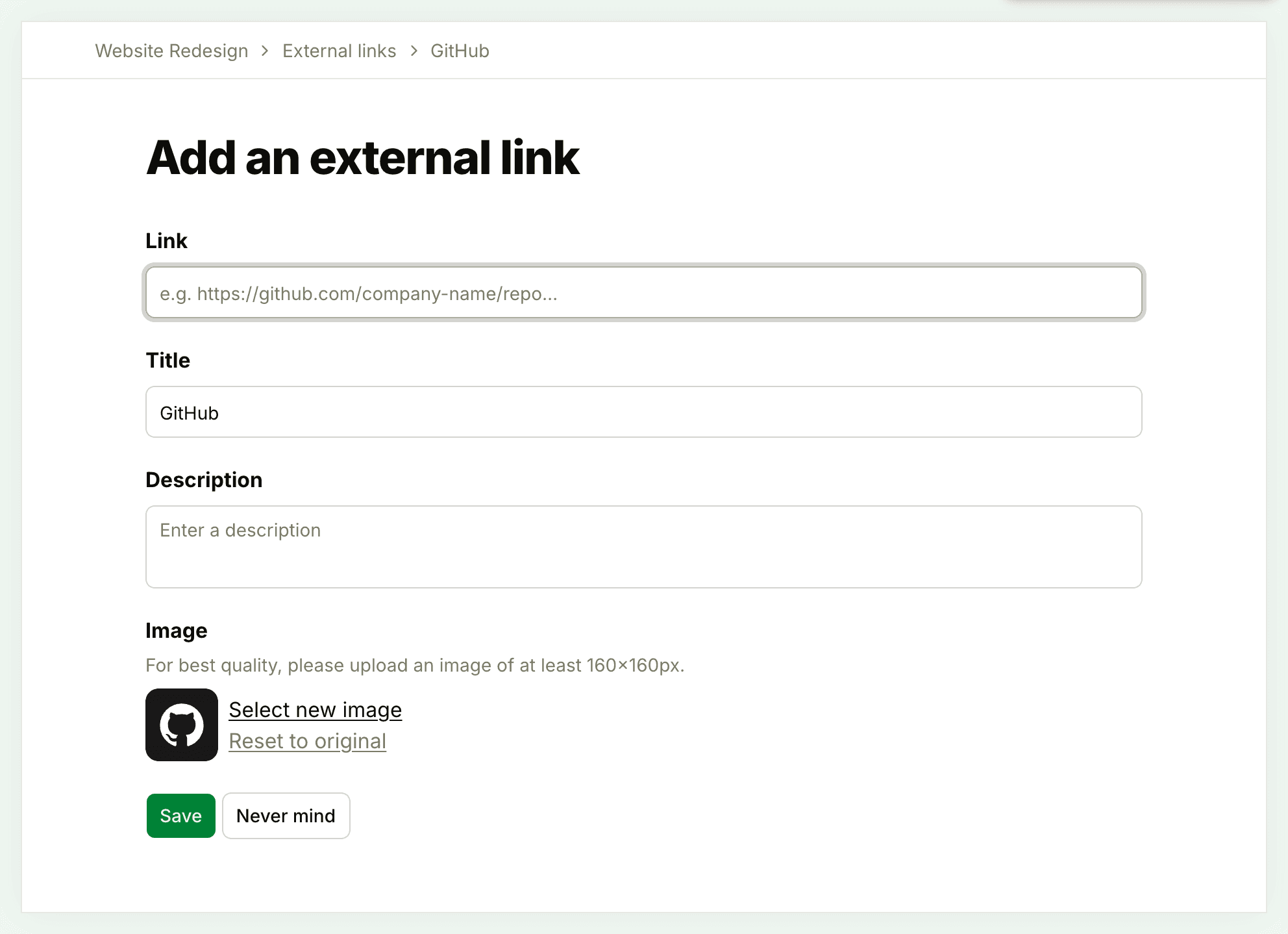
- Paste the address under Link
- Change the Title and add a Description if you like
- Click Save
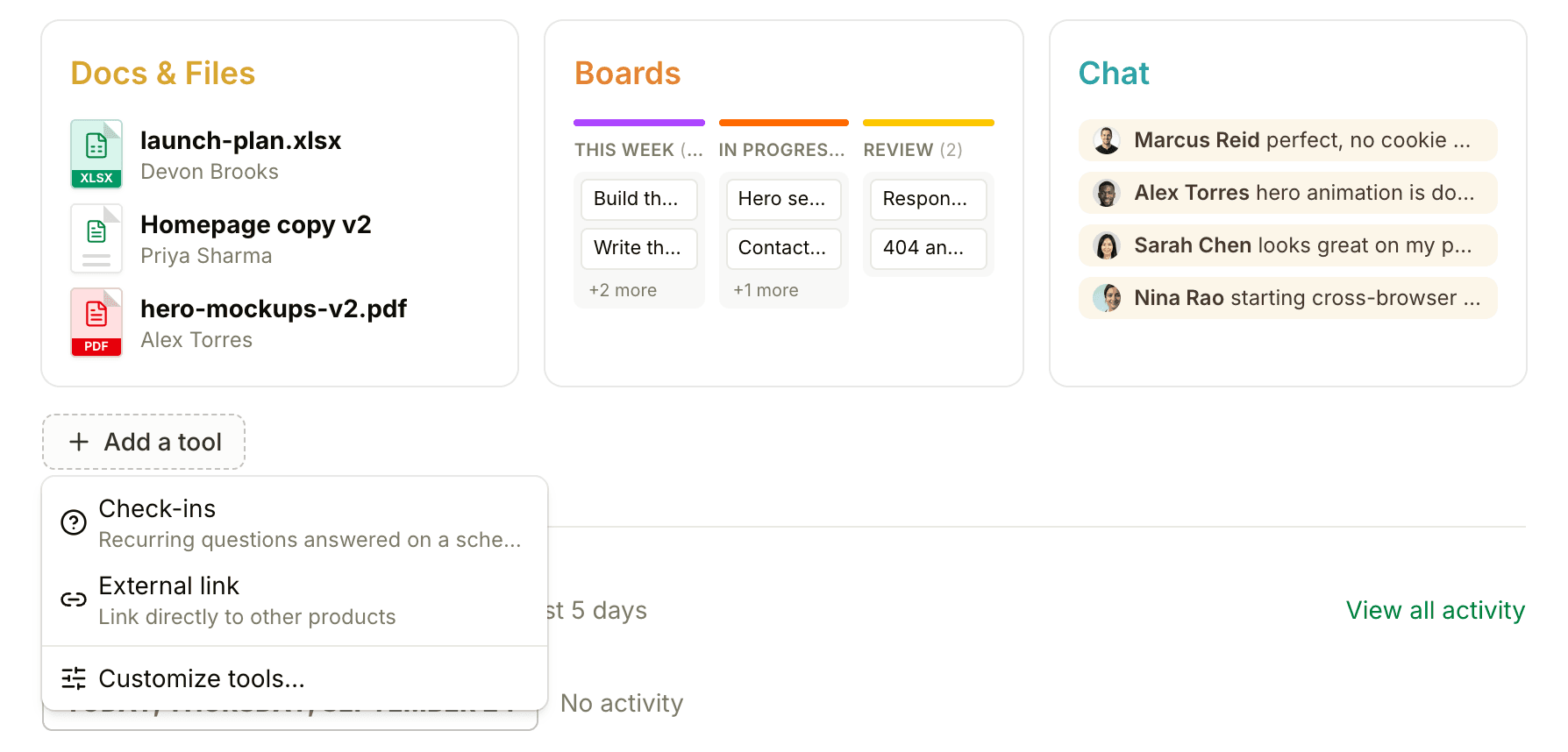
You can also start from the project's settings: below the tool switches, click Add an external link.
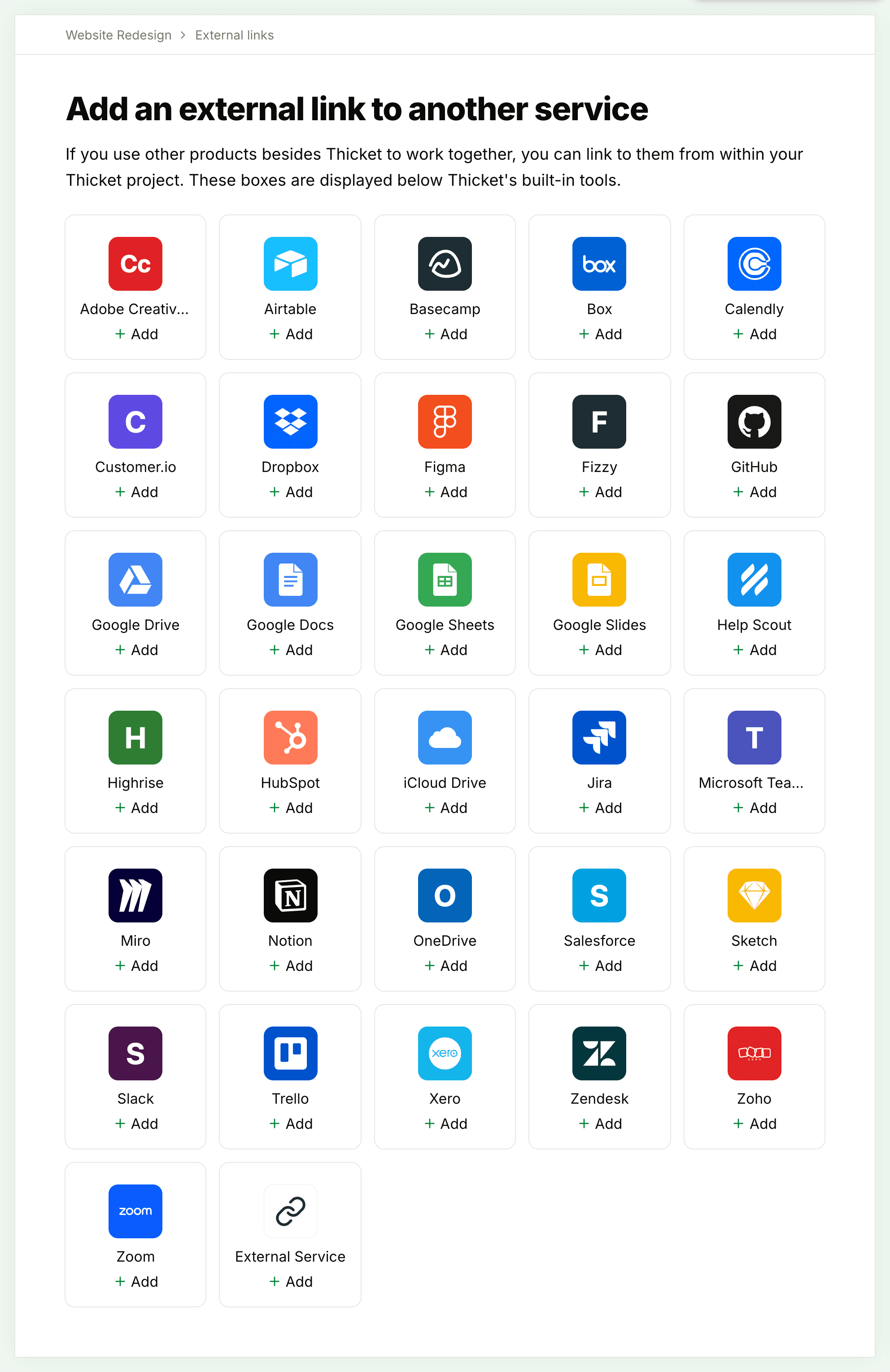
The Title starts as the service's name and holds up to 26 characters, so it fits on the card. The link has to be a web address. If you leave off https://, Thicket adds it. If the address isn't one Thicket can use, the form says so under Link, for example "Oops, that doesn't look like a valid GitHub link".
A project can have as many external links as you need, including several for the same service.
Choosing an image
Each card shows the service's logo, or a link icon for External Service. To use your own picture instead, click Select new image under Image and choose a PNG, JPEG, GIF, WebP, AVIF or HEIC file under 10 MB. A square image at least 160 pixels wide looks best. Reset to original goes back to the service's logo.
Where external links appear
Once a project has an external link, its home page has an External links section below the tools. Each card shows the image, the title, the address and the description. Clicking a card opens the link in a new browser tab.
To change the order, drag a card to a new spot among the other links.
Editing or removing a link
- On the project's home page, hover over the card and click Edit in its top corner
- Change the details and click Save
To remove the link, open it with Edit and click the red trash button at the bottom of the form, then click Delete to confirm. Removing a link is permanent. It doesn't go to the trash, so it can't be restored.
Who can add and see external links
Everyone on the project's team can add, edit, reorder and remove external links. Clients can't.
If the project works with clients, the form has a Visible to clients switch, which names the client company when the project has one. Links stay hidden from clients until you turn it on. See What Clients Can See and Do.
An external link only points to the other service. Thicket doesn't sign anyone in there or change who can open the page, so check the sharing settings in that service.
To keep a link to a single cloud file inside Docs & Files instead, where it gets its own page and comments, use New… > Add a link (Google Drive, Figma, …) in Docs & Files. See Docs and Files.