
Roadmap
Plot your dated projects on a 13-week timeline to see what is in play and who is on it, change dates in place, and mark key dates for everyone.
The Roadmap shows your projects as bars on a timeline, so you can see what's running now, what's coming up, and who's working on each one. Click Reports in the sidebar and choose Roadmap.
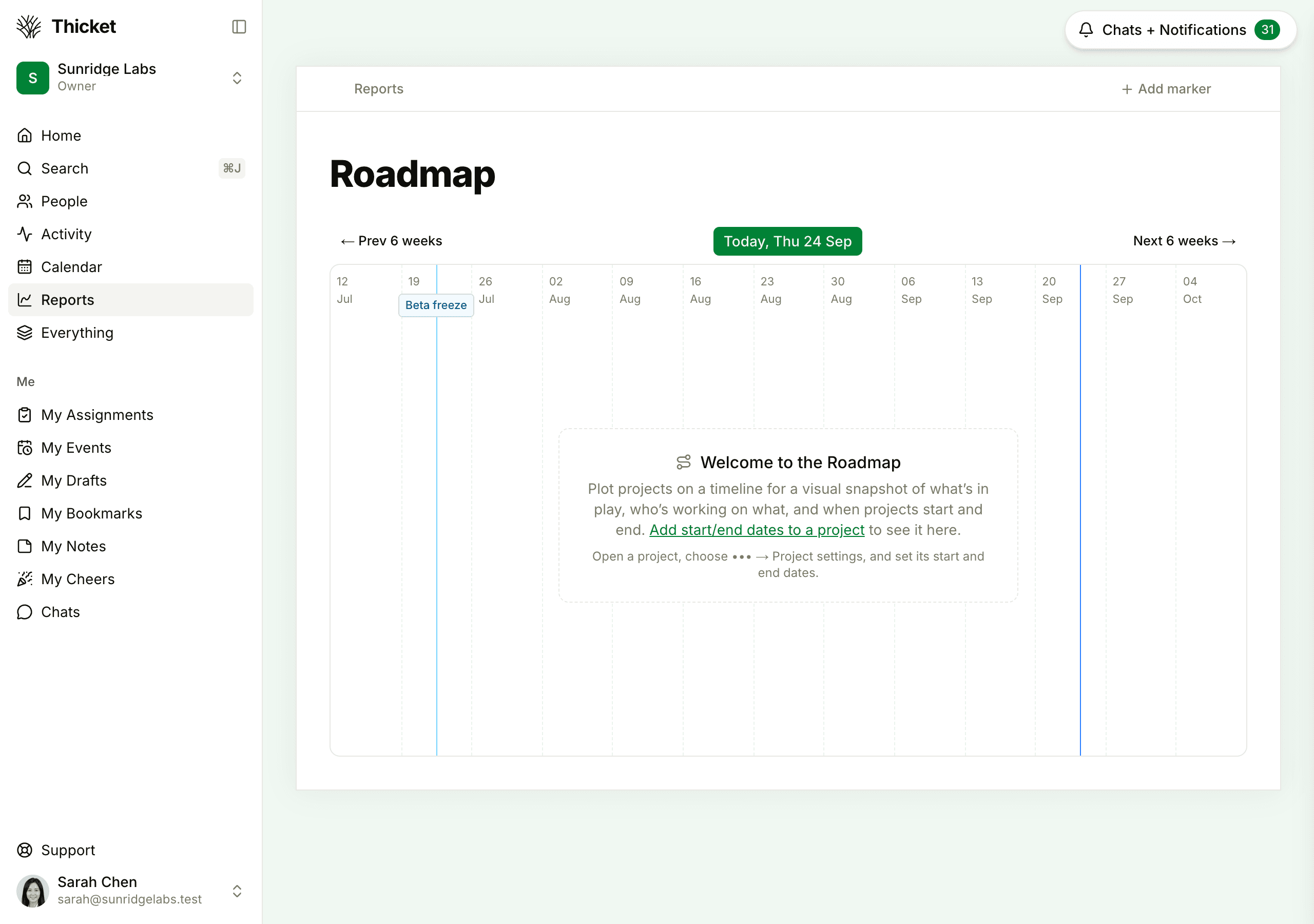
Reading the Roadmap
- The timeline spans 13 weeks: the six weeks before this one, this week, and the six weeks after. Weeks begin on the day set in your preferences (see Your Profile and Preferences).
- A blue line marks today.
- Each project is a bar running from its start date to its end date. The top of the bar shows both dates, and below them are the project's name and the photos of up to eight people on it.
- Click a project's name to open it.
- ← Prev 6 weeks and Next 6 weeks → move the timeline, and the Today button between them, which shows today's date, brings you back to the current weeks. On the keyboard, use the left and right arrow keys, and Shift+D for today.
The Roadmap shows active projects you can see that have both a start date and an end date. Until at least one project has dates, it shows Welcome to the Roadmap.
Adding start and end dates
- Open the project, click ••• at the top right, and choose Project settings
- Under General, set Starts and Ends. A project needs both dates, or neither
- Click Save changes
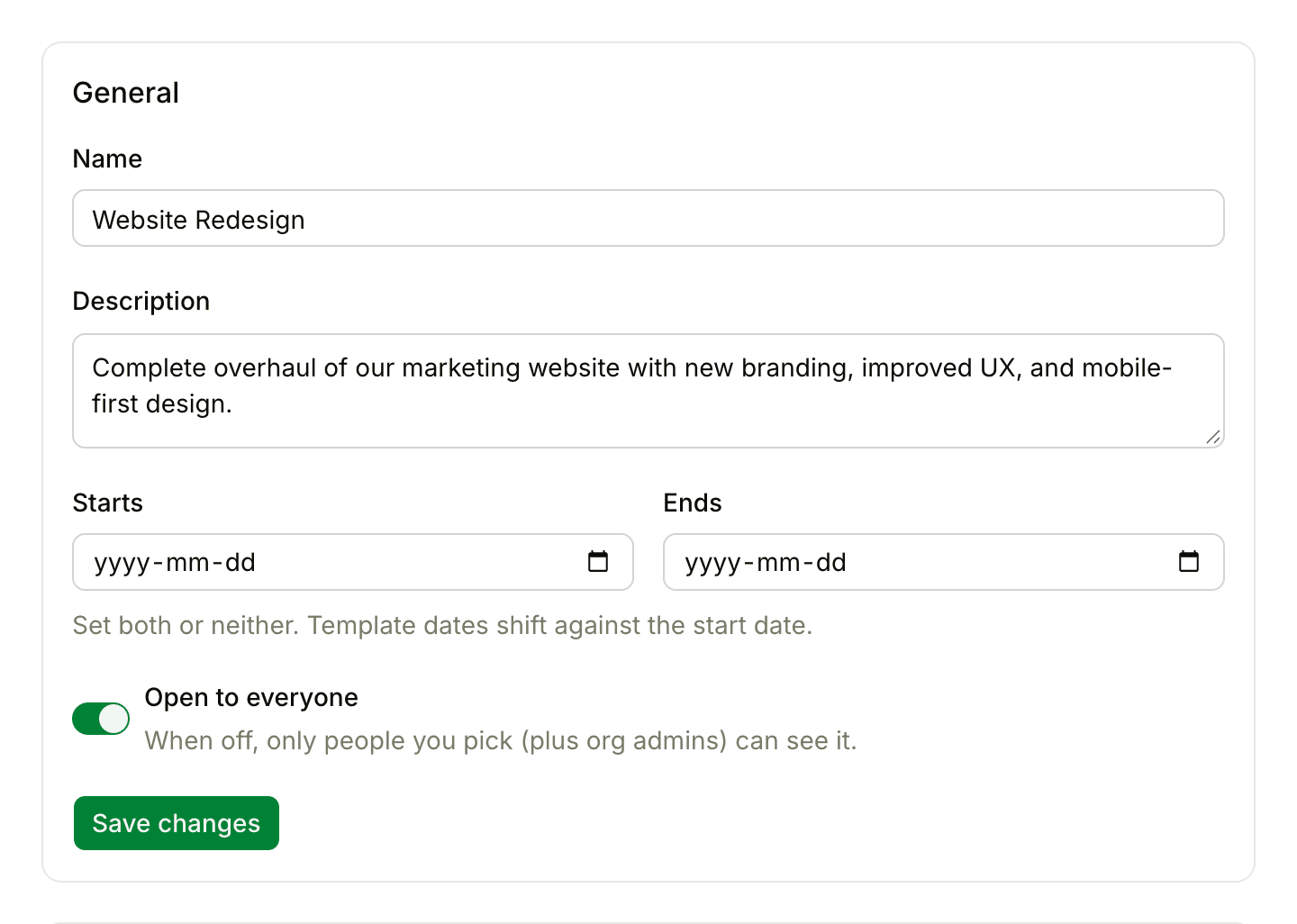
The project's page then shows its dates under the description, and clicking them opens the Roadmap. To take a project off the Roadmap, clear both dates.
You can also change dates on the Roadmap itself: click the start or end date at the top of a project's bar, pick a new date, and click Save.
Anyone on the team with access to a project can change its dates, unless an admin has turned on Restrict who can edit project details. Then only owners, admins, and the person who created the project can, and for everyone else the dates on the project's bar can't be clicked. See Permissions.
Markers
Markers call out dates that matter to everyone, like a launch or an office closure. Each one shows as a labeled line across the Roadmap, and everyone who can see the Roadmap sees it.
Owners and admins can add markers:
- Click Add marker at the top right of the Roadmap
- In Add a marker to the roadmap, type a Title and choose a Date
- Click Save
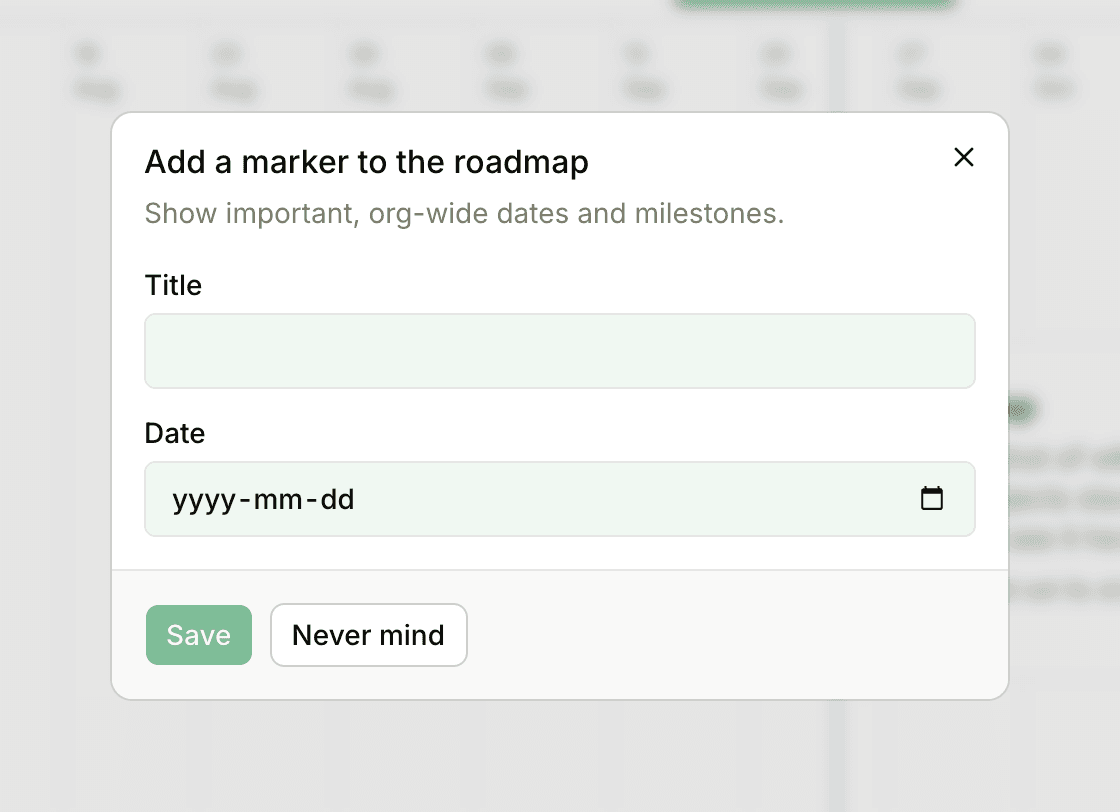
To change a marker, an owner or admin clicks its label on the Roadmap, edits it, and clicks Save, or clicks Remove marker to delete it.
Who can see the Roadmap
The Roadmap is one of the reports, so owners, admins, and members can see it. Clients can't.