
Moving and Copying
Move an item to another project, list, or folder, or copy it to reuse the work, and see what comes along in each case.
Work doesn't always start in the right place. Move an item when it belongs somewhere else, and copy it when you want to reuse the work while keeping the original where it is.
What You Can Move and Copy
These items can be moved or copied to another project:
- Messages
- To-do lists, groups, and single to-dos
- Docs, files, folders, and links to outside files (Google Drive, Figma, and so on)
- Cards
- Events
- Check-in questions
An item always lands in the same tool in the other project: a message goes to that project's Message Board, a card to its board, an event to its Calendar. The project picker lists only active projects you can open that have that tool turned on, so a project without Boards won't appear when you move a card.
Moving an Item to Another Project
- Open the item.
- Click the ••• menu at the top right of the page.
- Choose Move to another project… (for an event, Move to another calendar…).
- Pick the project. When you move a doc, file, link, or folder into a project that has folders, you can also Choose a folder. Leave it at Top level to put the item in Docs & Files itself rather than in a folder.
- Click Move.
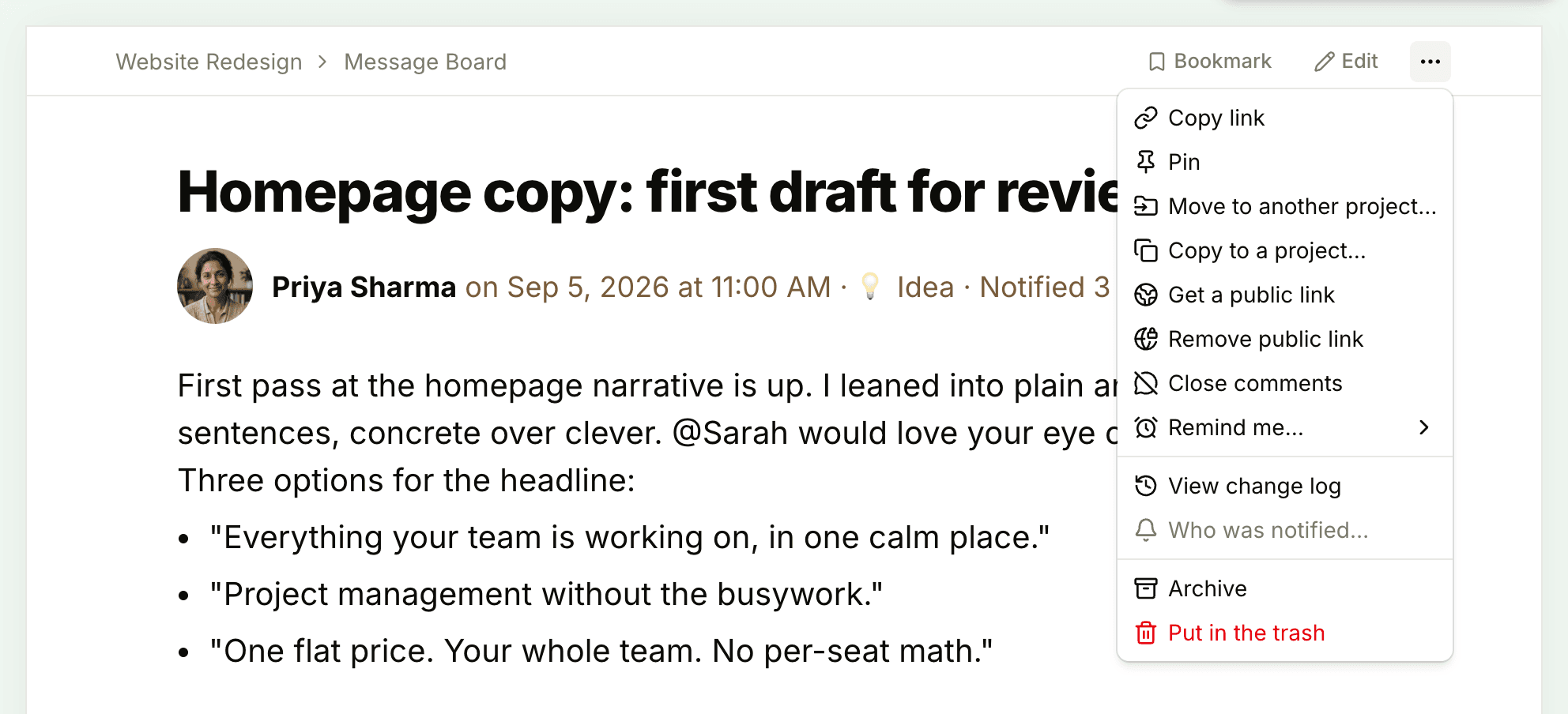
In Docs & Files, the menu at the end of each row has the same commands, labeled Move to another project… and Copy….
The whole thread moves with the item: its comments, the to-dos in a list, a card's steps, a folder's contents, and a check-in question's answers. Images and files embedded in its text move to the new project's Docs & Files too, unless something left behind still uses them. The item keeps its history, and its change log records the move. Moving doesn't change who's assigned or who is notified about new comments. If someone assigned to a moved item isn't on the new project, add them to it so they can still see their work. See Adding People to a Project.
A few items settle in a particular spot:
- Cards land at the top of the new board's Triage column.
- Events can also move between a project's Calendar and the Account calendar, the calendar that belongs to the whole account rather than one project. Events on the account calendar are never shown to clients.
Copying an Item
- Open the item and click •••.
- Choose Copy to a project… (for an event, Copy to another calendar…).
- Pick a project. The current project is in the list too, so you can make a copy right next to the original.
- Choose a folder or a list if the dialog offers one.
- Tick Include comments if the discussion should come along.
- Click Copy.
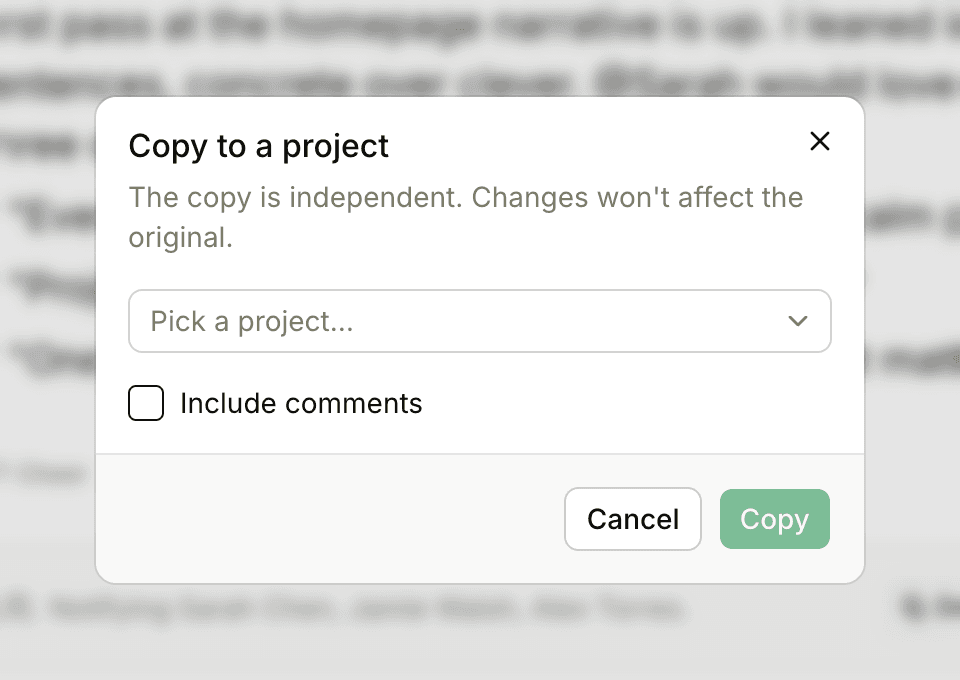
A copy is independent: changes to it never affect the original, and the other way around. Here's what it brings with it:
- Copied: the title, the content, dates, category, and everything active inside the item, such as the to-dos in a list or the files in a folder.
- Comments: only when you tick Include comments. Copied comments keep their original authors and dates.
- Not copied: assignments, completion, history, or the list of people being notified. Every to-do in a copy starts unchecked, and you're the only person following the copy until you add others.
- Embedded images and files: a copy keeps pointing at the originals, which stay in the first project's Docs & Files. Only people on that project can open them.
You're listed as the person who created the copy. A copied check-in question keeps its people and schedule, but not the answers.
Moving and Copying To-dos
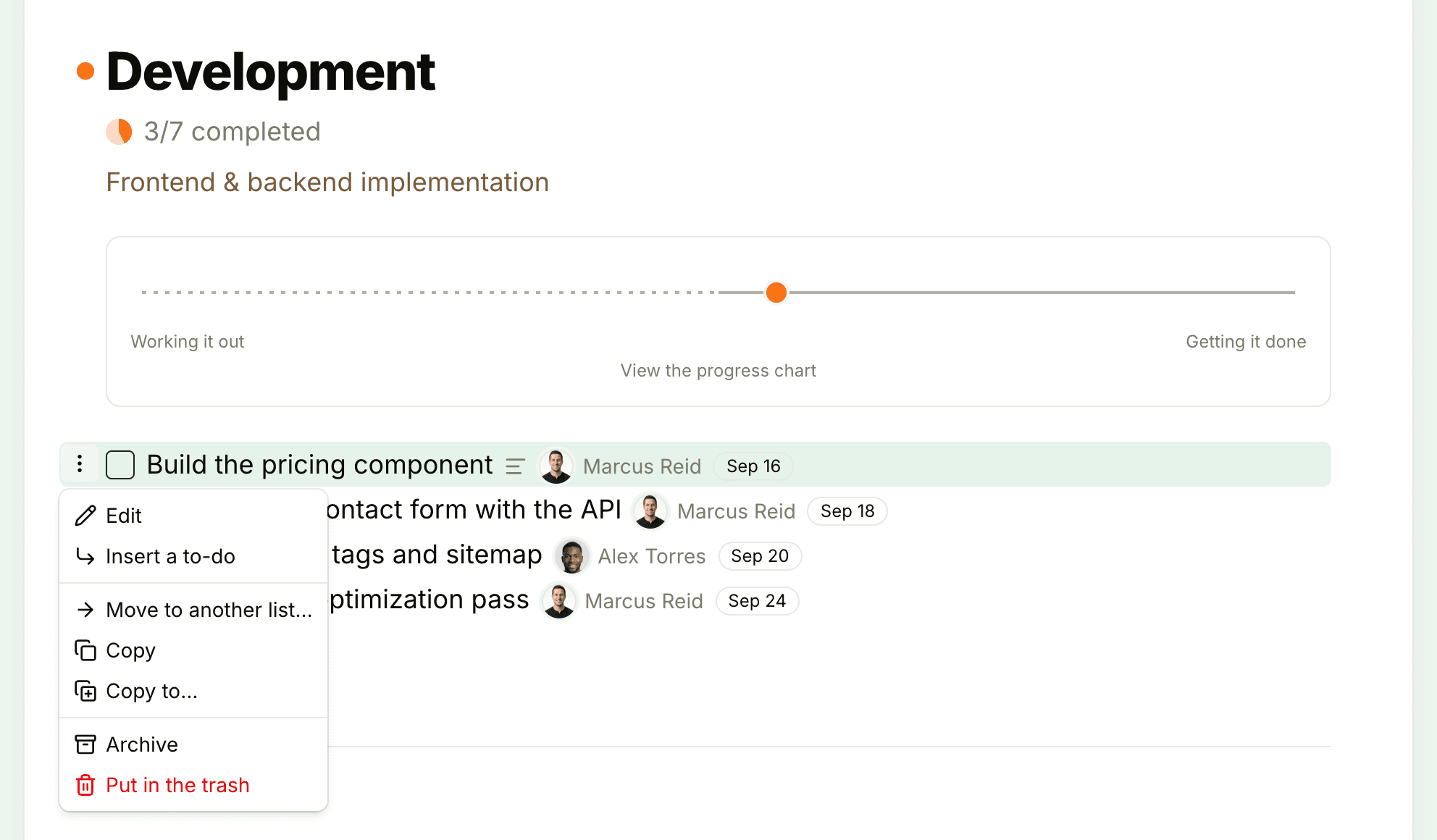
Hover over a to-do and click the ⋮ menu to its left:
- Move to appears when there's somewhere nearby to go. It sends the to-do to another group in the same list, or, for a to-do that isn't in any list, into one of the project's lists.
- Move to another list… opens the Move to another list dialog with the current project already picked. Under Choose a list, pick any list or group, in this project or another one, then click Move.
- Copy duplicates it in the same list.
- Copy to… copies it to another list or project.
You can also drag to-dos to reorder them or drop them into another list or group on the same page. To act on several to-dos in the same list at once, hold ⌘ (or Ctrl) and click each one, or Shift-click to pick a range, then open the menu on any of them and choose Move to… or Copy to….
A group moves the same way as a list, from the ⋮ menu next to its name. To make a group a list of its own inside the same project, choose Turn into a list. See To-dos and Lists for more on lists and groups.
Moving Things Within a Project
- Cards: drag a card to another column, or use Move along to… on the card's page. See Boards.
- Docs, files, and folders: choose Move to a folder… from the item's ••• menu, or from the menu at the end of its row in Docs & Files. With Sort manually selected, you can also drag an item onto a folder.
Who Can Move and Copy
You can move or copy an item into any project you can open: a project you've been added to, or one that's open to everyone in the account. Being an owner or admin doesn't add projects to the list, so join a project first to move things into it.
By default, anyone on a project can move its items. An owner or admin can tighten that in Admin > Permissions by turning on Restrict who can move, archive, and delete content. Then only owners, admins, and the person who created an item can move it, and anyone else who tries sees "Only admins or the person who created this can do that". Anyone can still move cards between columns on the same board, and copying isn't affected. See Permissions.
Clients can't move or copy items to another project.
To point someone at an item instead of duplicating it, choose Copy link from the ••• menu and paste the link anywhere. See Comments and References.