
Keyboard Shortcuts
Get around Thicket from the keyboard: open the jump menu, go to your own pages, and act on the page you are on with a few keys.
Keyboard shortcuts take you to your most-used pages and act on the page you're on without reaching for the mouse. Where a shortcut uses ⌘ on a Mac, use Ctrl on Windows and Linux.
Seeing the Shortcuts
- Press ? on any page to open the Keyboard shortcuts list. It includes the shortcuts for the page you're on.
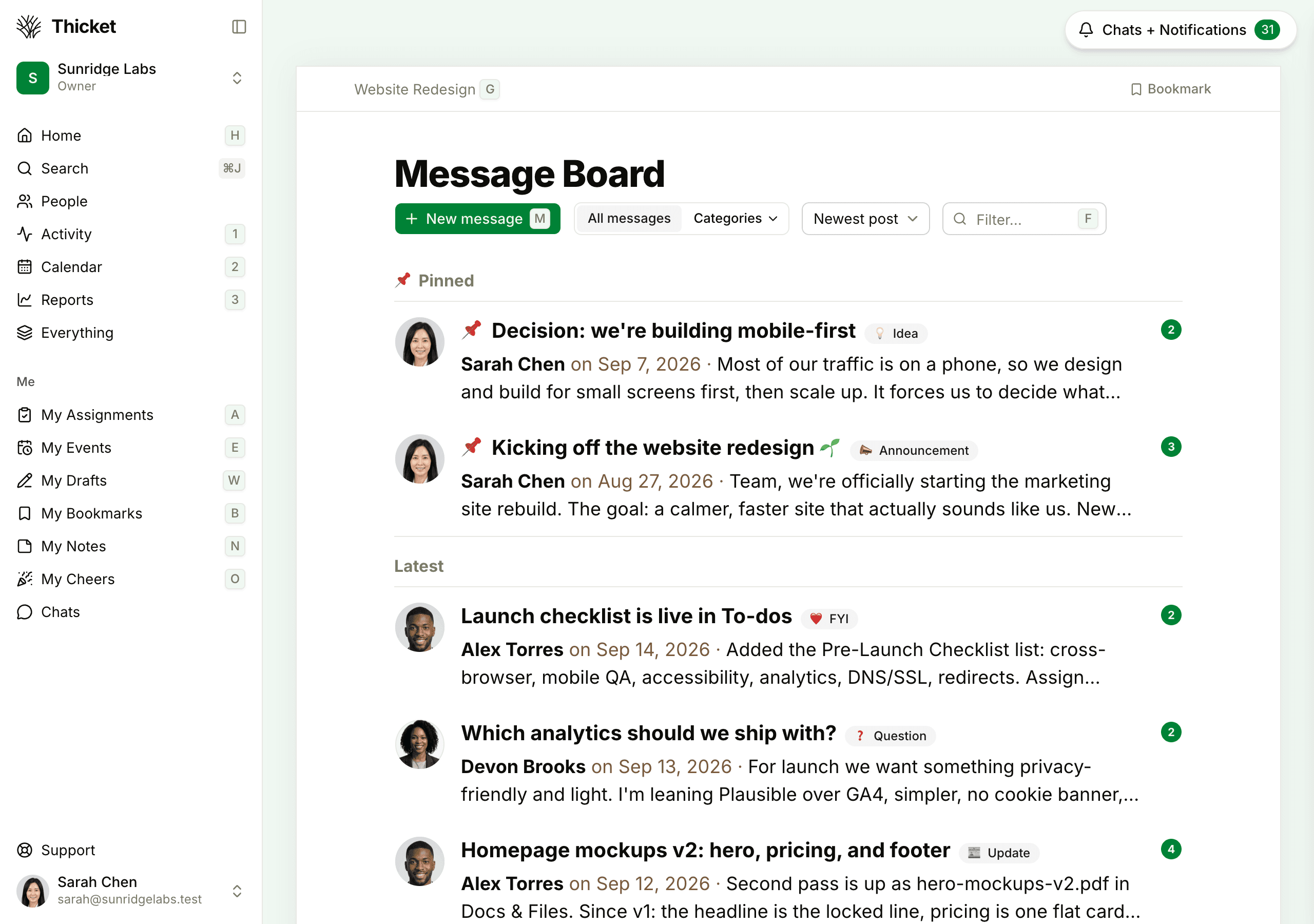
- Hold Shift to show a small key hint next to the sidebar links and buttons that have a shortcut.
- Shortcuts pause while you're typing in a box and while a dialog or menu is open. To use one from inside a text box, press Shift twice quickly, then the shortcut's key.
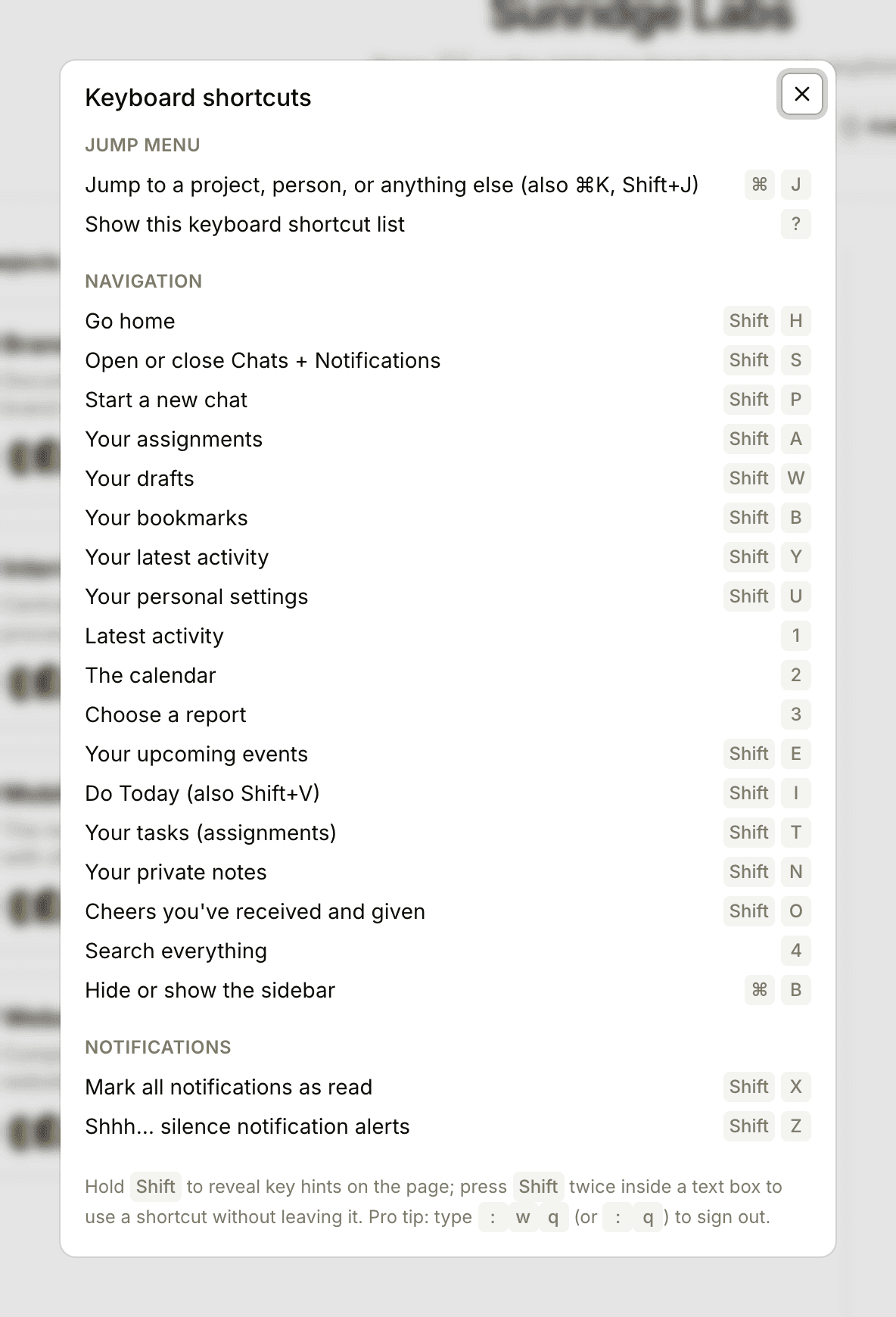
Getting Around
| Keys | What it does |
|---|---|
| ⌘J, ⌘K, or Shift+J | Open the jump menu |
| ? | Show the keyboard shortcut list |
| Shift+H | Home |
| 1 | Latest activity |
| 2 | The Calendar |
| 3 | Reports (not for clients) |
| 4 | Search |
| Shift+A or Shift+T | My Assignments |
| Shift+E | My Events |
| Shift+I or Shift+V | Do Today |
| Shift+W | My Drafts |
| Shift+B | My Bookmarks |
| Shift+N | My Notes |
| Shift+O | My Cheers |
| Shift+Y | Your own latest activity |
| Shift+U | My settings |
| Shift+P | Start a new chat |
| Shift+S | Open or close Chats + Notifications |
| Shift+X | Mark all notifications as read |
| Shift+Z | Silence notification alerts, or turn them back on |
| ⌘B | Hide or show the sidebar |
One more, for fun: type :wq (or :q) outside a text box to sign out.
On the Page You're On
These work on the pages where they make sense. Hold Shift to see their key hints next to the matching buttons.
| Keys | What it does |
|---|---|
| Shift+G | Back to the project, from any tool or item in it |
| Shift+M | Make something new in the tool you're in: a message on the Message Board, a list in To-dos, a doc in Docs & Files, a card on a board, an event on a calendar, or a question in Check-ins |
| Shift+F | Jump to the page's Filter… box |
| Shift+C | Jump to the comment box, or to the message box in a chat |
| Shift+D | Mark a to-do or card done, or reopen it. On the Calendar in the sidebar and on the Roadmap, jump to today |
| Shift+K | Assign the to-do or card to yourself |
| ← and → | On the Calendar in the sidebar and on the Roadmap, go back or forward six weeks |
In the Jump Menu
- ↑ and ↓ move through the results, and Enter opens one.
- ⌘Enter searches everything for what you typed.
- Shift+Enter searches only the project you're in.
- Esc closes the menu.
See Searching for more on the jump menu.
Writing and Editing
These work in the text editor for messages, docs, comments, and other formatted text. Inside the editor, ⌘B means bold rather than hiding the sidebar.
| Keys | What it does |
|---|---|
| ⌘B | Bold |
| ⌘I | Italic |
| ⌘U | Underline |
| ⌘Shift+S | Strikethrough |
| ⌘E | Code |
| ⌘Shift+8 | Bulleted list |
| ⌘Shift+7 | Numbered list |
| ⌘Shift+B | Quote |
| Tab and Shift+Tab | Indent or outdent a list item |
| Shift+Enter | A line break without starting a new paragraph |
| ⌘Z | Undo |
| ⌘Shift+Z | Redo |
The editor also turns some things you type into formatting, such as a hyphen and a space at the start of a line for a bulleted list. See Formatting Text.
A few more keys help while you write:
- Chat: on a computer, Enter posts your message and Shift+Enter starts a new line. After you open the formatting toolbar with the Formatting button, Enter starts a new line and you post with the Post button.
- Voice notes: Esc stops a recording.
- To-dos: hold ⌘ and click, or Shift-click, to select several to-dos in a list. Esc clears the selection.
- My Notes: ⌘S saves right away.