
Formatting Text
Use the formatting toolbar, keyboard shortcuts and Markdown to add headings, lists, links, tables, code, colors, images, files and embeds.
Wherever you write in Thicket (messages, docs, comments, check-in answers, to-do and card notes, and chat) you get the same editor. Keep it to plain sentences, or give your writing some structure with headings, lists, tables and more. What you see while you write is what everyone sees once it's posted.
The formatting toolbar
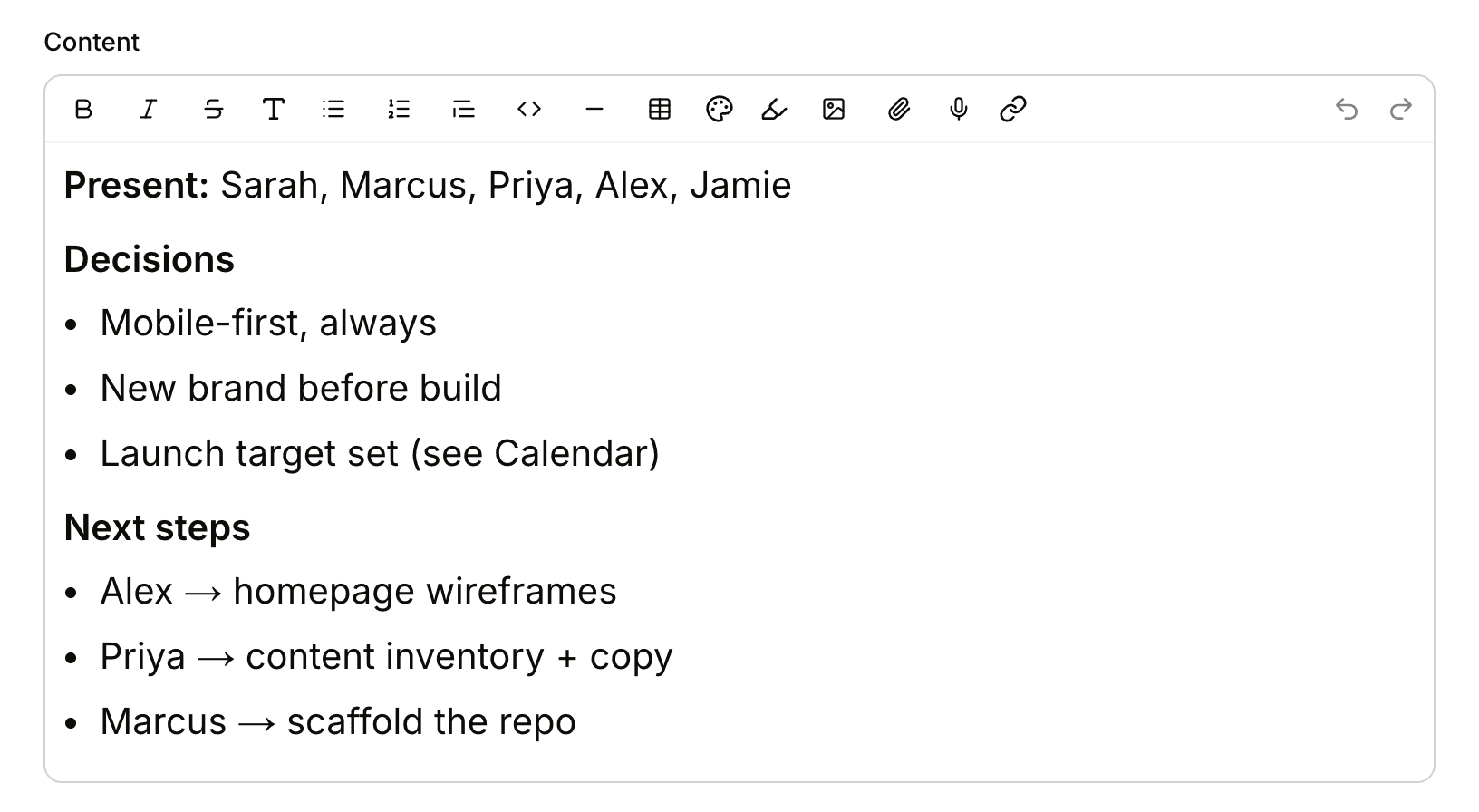
The toolbar runs along the top of the writing box. From left to right, its buttons are:
- Bold, italic and strikethrough
- Text styles (the T button), for headings
- Bulleted list, numbered list and quote
- Code block and divider
- Table
- Text color and highlight
- Image, file and microphone, for adding pictures, attachments and voice notes
- Link
- Undo and redo, at the far right
Select some text and click a button to format it, or click a button and start typing.
In chat, the toolbar stays hidden to keep the box small. Click the T button beside the chat box to show it. See Group Chat and Direct Messages.
Headings and text styles
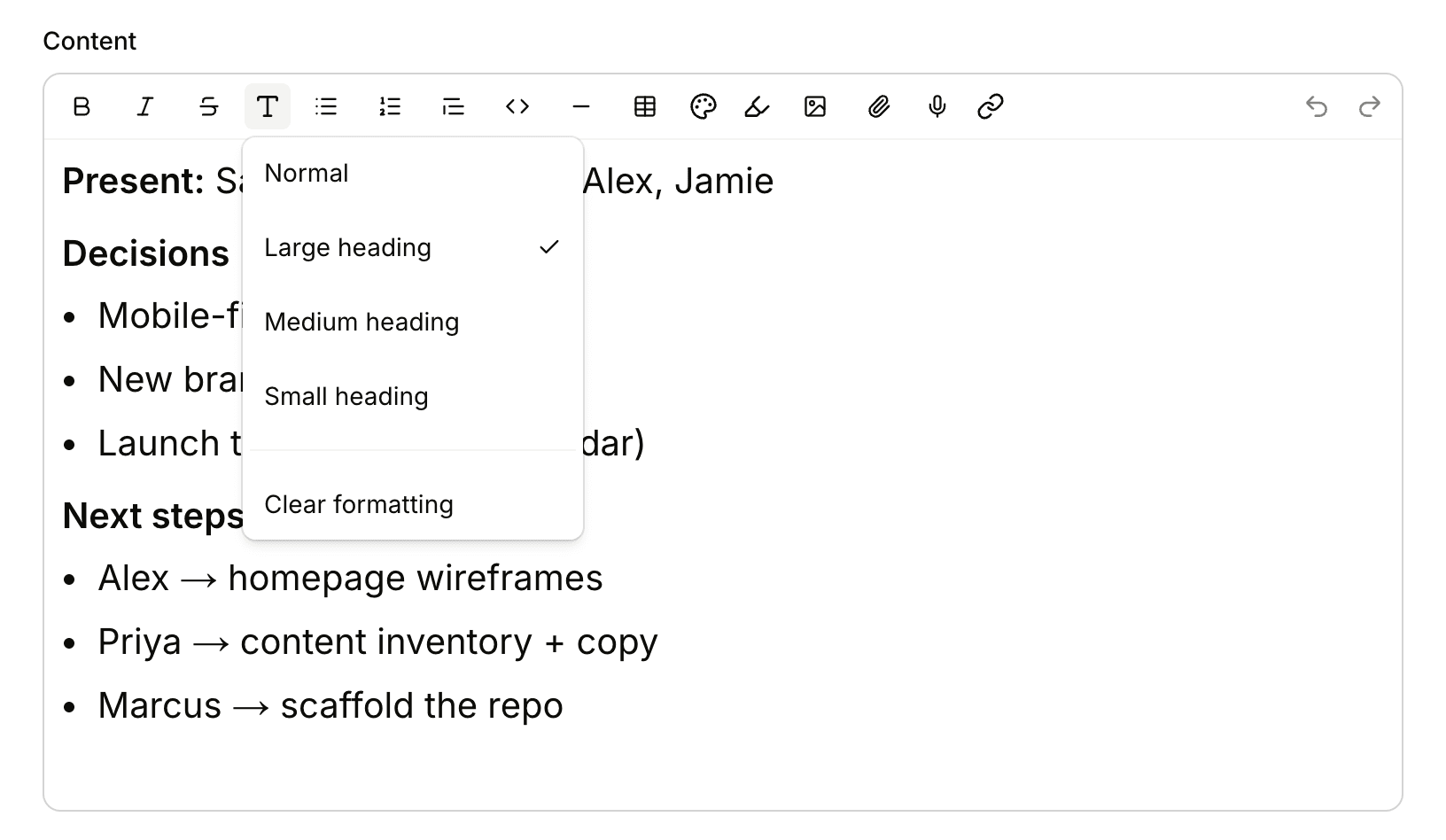
Click the T button to open the text styles:
- Normal is plain paragraph text
- Large heading, Medium heading and Small heading break a long post into sections. A tick shows which style the text under your cursor has
- Clear formatting turns the selected text back into plain text: no bold, colors, links or headings. It's handy when pasted text brings its own styles along
Lists
Click the bulleted or numbered list button, or start a line with a dash and a space. Press Enter for the next item, Tab to indent an item under the one above it, Shift+Tab to move it back out, and Enter twice to end the list.
Links
- Select the words you want to link
- Click the link button, paste the address, and click Set link (or press Enter)
To change or remove a link, put your cursor in it, click the link button, and edit the address or click Unset. Web addresses you type or paste become links on their own. If you leave https:// off an address in the link box, Thicket adds it.
Linking to another item in Thicket also shows up on that item. See Comments and References.
Quotes, code and dividers
- The quote button sets text off as a block quote, for quoting someone or pulling out a key point
- The code block button starts a block for code or anything else that needs its exact spacing. While your cursor is in a code block, a language menu appears next to the button: pick one (Bash, CSS, Go, HTML, JavaScript, Python, Ruby, SQL, Swift, TypeScript and more) to color the code, or leave it on Plain text
- For a bit of code inside a sentence, wrap it in backticks, like
this - The divider button puts a line across the page between sections
Tables
Click the table button to insert a table with three columns, three rows and a header row. While your cursor is in the table, buttons appear in the toolbar to add a row or a column after the current one, remove the current row or column, and delete the whole table.
Text color and highlight
The text color button offers eight colors: red, orange, amber, green, blue, violet, pink and gray. The highlight button offers yellow, green, blue, pink and orange. A piece of text takes one color or one highlight, not both. Clear color in the text color menu removes either one.
Images, files and embeds
- Images: click the image button and choose one or more pictures, or drag them into the writing box, or paste them. They appear right in the text
- Files: click the file button, or drag any file into the writing box. It appears as an attachment people can open or download
Files upload as soon as you add them, and you can post once they've finished. Images and files are kept in the project's Docs & Files, so these buttons (and the microphone) only appear in projects that have Docs & Files turned on. In direct messages, they're kept with the conversation. When a post is shared with clients, clients can see its images and open its files too.
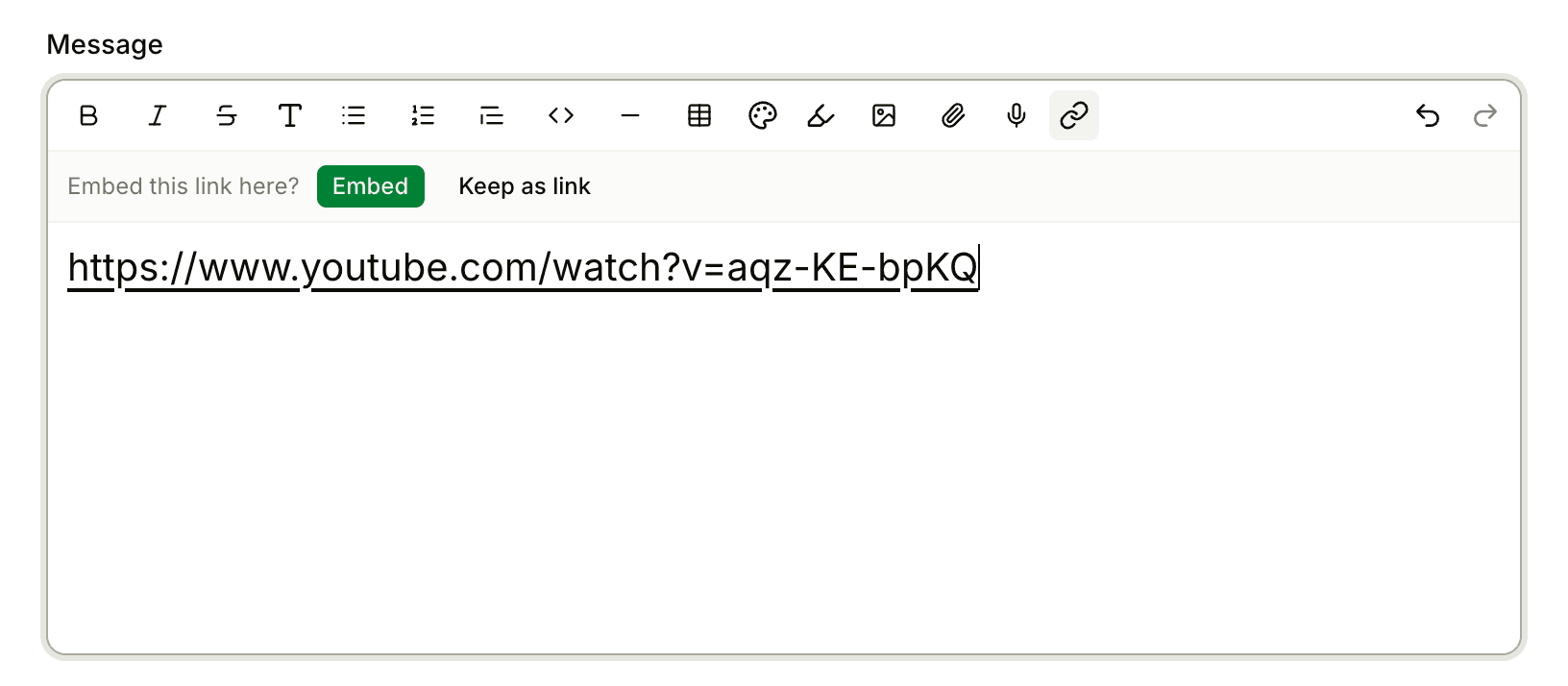
To embed media, paste a link to a YouTube, Vimeo or Loom video, a Spotify track, album, playlist or podcast, a post on X, a SoundCloud track, a Flickr photo, an Imgur post, or a GIF (the address must end in .gif). Thicket asks Embed this link here? Click Embed to show the video, player or picture in your post, or Keep as link. The question only appears when you paste a link, not when you type one.
To mention someone, type @ and pick their name. The list offers the people who can see what you're writing. See @-mentions.
Markdown shortcuts
You can format as you type, without the toolbar. At the start of a line, type:
| Type this, then a space | To get |
|---|---|
##, ### or #### | A large, medium or small heading |
- or * | A bulleted list |
1. | A numbered list |
> | A quote |
``` | A code block (add a language, as in ```js, to color it) |
Typing --- at the start of an empty line adds a divider.
Around words anywhere in a line, **bold**, *italic* or _italic_, ~~strikethrough~~ and `code` format the words as soon as you type the closing mark.
You can also paste text written in Markdown, such as notes from another app: Thicket turns its headings, lists, bold text and links into formatting.
Keyboard shortcuts
On a Mac, use Command (⌘). On Windows and Linux, use Ctrl in its place.
| Shortcut | What it does |
|---|---|
| ⌘B | Bold |
| ⌘I | Italic |
| ⌘U | Underline |
| ⌘Shift+S | Strikethrough |
| ⌘E | Code inside a sentence |
| ⌘Shift+8 | Bulleted list |
| ⌘Shift+7 | Numbered list |
| ⌘Shift+B | Quote |
| ⌘Option+C (Ctrl+Alt+C) | Code block |
| ⌘Option+2, 3 or 4 (Ctrl+Alt+2, 3 or 4) | Large, medium or small heading |
| ⌘Z | Undo |
| ⌘Shift+Z | Redo |
| Shift+Enter | A new line inside the same paragraph |
For the shortcuts that move around Thicket itself, see Keyboard Shortcuts.