
Drafts and Scheduled Posts
Save a message or doc as a draft to finish later, or schedule it to post on its own at a date and time you choose.
Not ready to post yet? Save a message or a doc as a draft and come back to it later, or pick a date and time and let Thicket post it for you. Drafts and scheduling work for new messages on a Message Board and new docs in Docs & Files. They're for the team: clients don't get Save as draft or Schedule….
Saving a draft
- Start a new message or doc as usual
- Click Save as draft instead of Post message or Post this doc
Thicket opens the draft's page, with a note at the top: "This is an unpublished draft". The draft keeps everything you set while writing, such as the category, whether clients can see it, and who to notify when it posts.
A draft stays off the project until you publish it. It isn't listed on the Message Board or in Docs & Files, it doesn't appear in the project's activity, nobody is notified about it, and it can't be commented on or cheered.
Scheduling a post
- While writing a new message or doc, click Schedule… next to the post button
- Under Post at, pick the date and time
- Click Schedule message (or Schedule doc)
The note under Post at says the post stays an unlisted draft until then, and that teammates on the project can read it if you share its link. To close the scheduling field before you save, click Don't schedule.
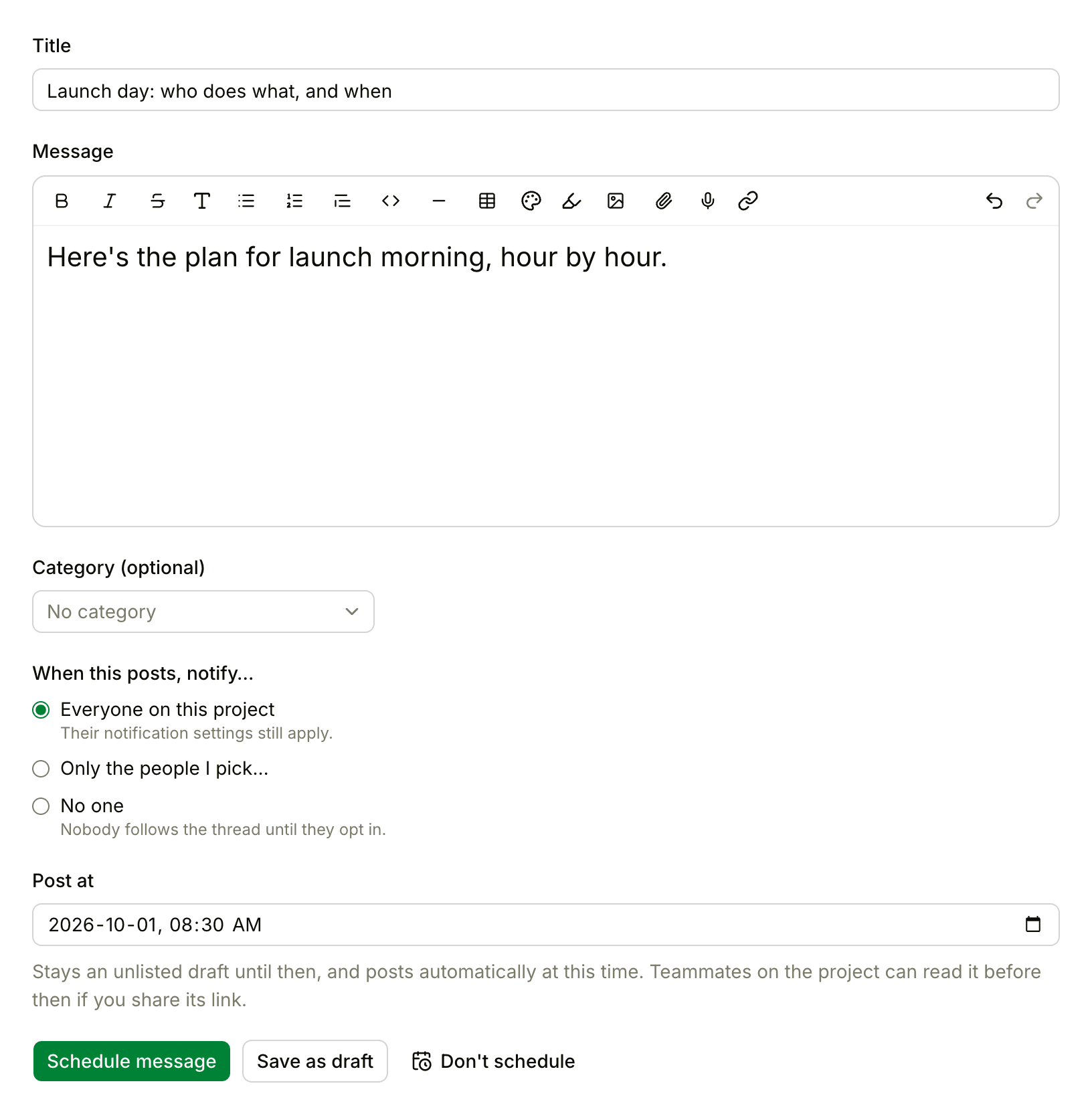
A scheduled post waits with your drafts, and its page says when it's scheduled to post. After the time you picked, Thicket publishes it: it appears in the project dated at the moment it went live, and it notifies the people you chose under When this posts, notify…, as if you had just posted it.
If you've been taken off the project by the time it's due, the post isn't published. It stays a draft, and its schedule is cleared.
Finding your drafts
- Click My Drafts in the sidebar, or press Shift+W. It lists every draft and scheduled post you have in the account, with its project, when you last changed it, and a "Scheduled for" date on the scheduled ones. See My Bar
- On a Message Board or in Docs & Files, a note at the top says how many drafts you have there, for example "Continue writing… you have 2 drafts on this board." Click Pick up where you left off → to open My Drafts
Finishing, publishing or deleting a draft
Open a draft to see its page. From there:
- Edit at the top lets you keep writing. Click Save message or Save doc when you're done, and it stays a draft
- Publish now posts it right away
- Schedule… sets a date and time. On a scheduled draft, Edit schedule changes the time and Remove schedule turns it back into a plain draft
- The ••• menu at the top right has Publish now and Put in the trash
On My Drafts, each draft also has a Publish now button and a trash button that discards it. A discarded draft goes to the trash, and restoring it brings it back as a draft. See Archiving, Trash, and Restoring.
Drafts are only for new posts. When you edit a message or doc that's already posted, your changes appear as soon as you save them.
Sharing a draft for feedback
Nobody else sees your drafts listed anywhere, but a draft isn't locked. To get a second opinion before posting, copy the draft's address from your browser and send it to someone on the project. They can read it, with a note that it's your unpublished draft. Only you can edit, schedule, publish or discard it. Clients can't open drafts, even with the link.