
Searching
Find messages, to-dos, docs, files, and chats with the jump menu or the Search page, and narrow the results by project, tool, or person.
Thicket has two ways to find things. The jump menu gets you to a project, person, page, or item in a few keystrokes. The Search page shows every match and lets you narrow the results.
The Jump Menu
Open the jump menu by clicking Search in the sidebar, or press ⌘J on a Mac (Ctrl+J on Windows). ⌘K and Shift+J open it too.
Before you type, it lists the pages you've visited recently and your projects, starred ones first. If you belong to more than one organization, they're listed as well, so you can switch.
As you type, it shows matching projects and people, your own pages (such as My drafts, My assignments, and My bookmarks), places like Activity, Calendar, and Everything, and up to eight matching messages, to-dos, docs, and other items. Use the arrow keys and Enter, or click, to open one.
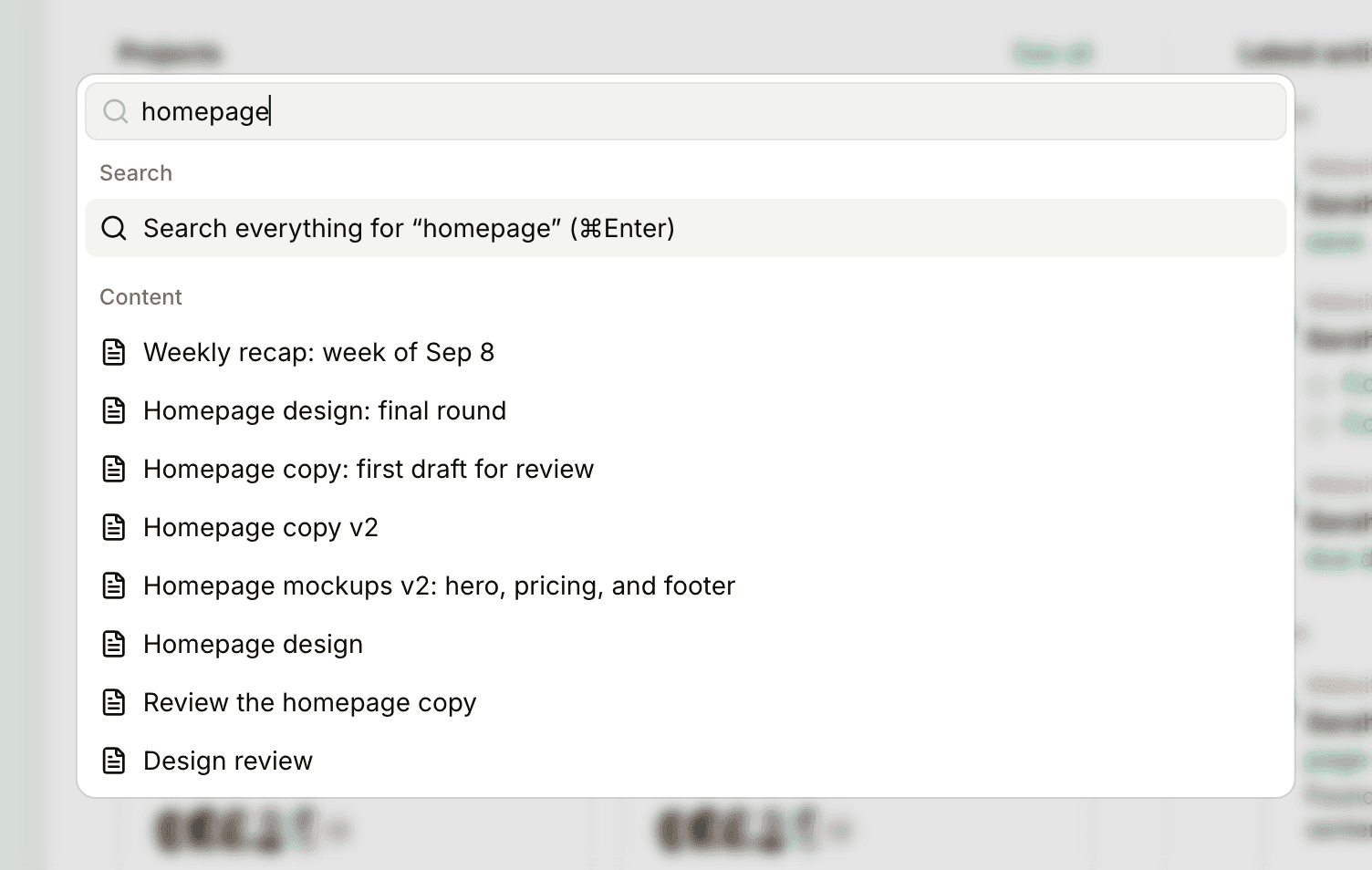
To see every result, choose Search everything for “…” or press ⌘Enter (Ctrl+Enter). When you're inside a project, Search this project for “…” (or Shift+Enter) limits the results to that project.
The Search Page
The Search page opens from the jump menu, or press 4 from anywhere in Thicket when you're not typing in a box. Type in the box at the top and press Enter.
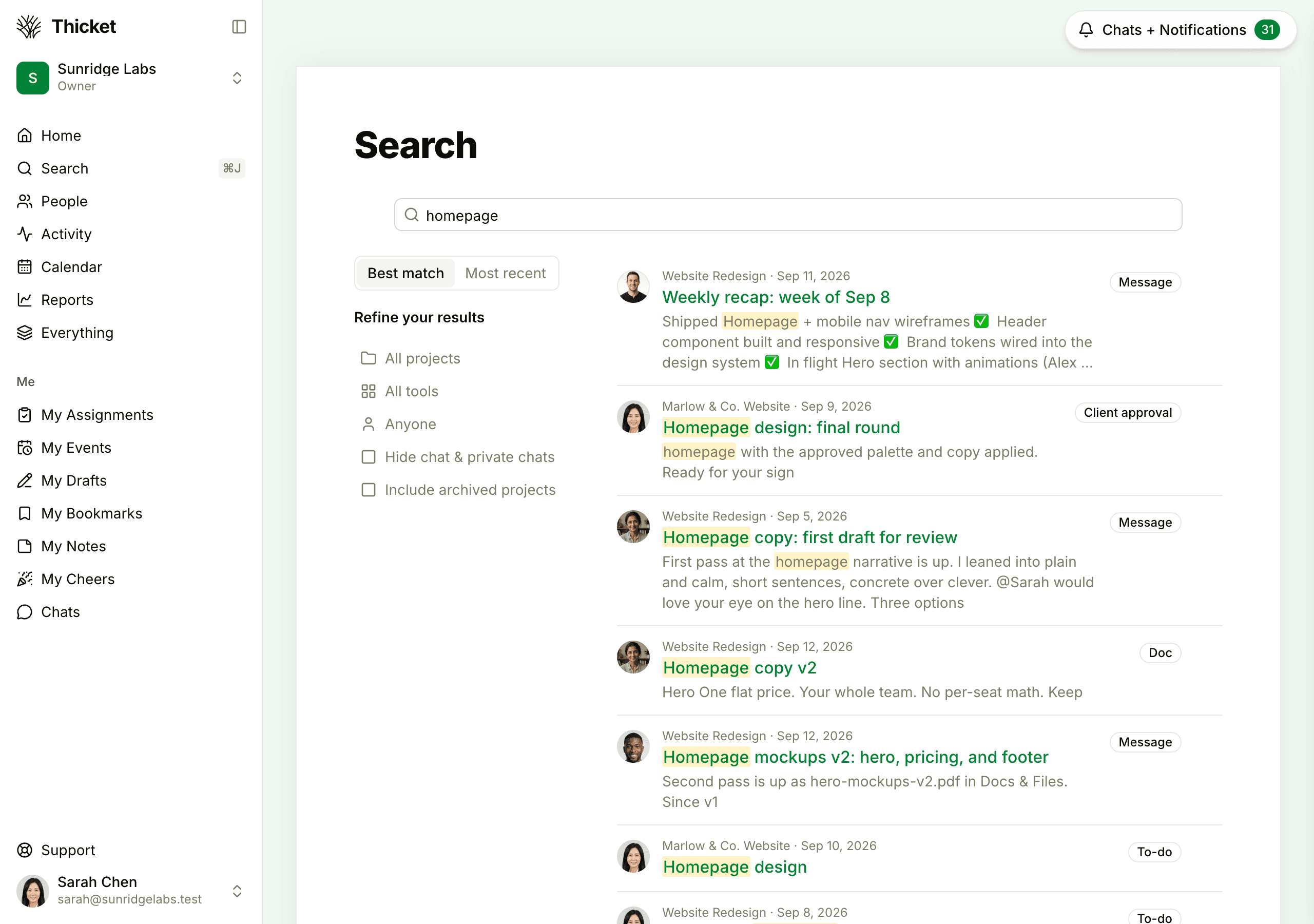
Each result shows the project, the date, the title, and a snippet with your words highlighted, plus a label for the kind of item, such as Message, To-do, or Doc. Chat lines are labeled Chat for a project's chat and Private chat for a direct message. Files come with a Download link. When no filters are set, projects whose names match appear above the other results.
Results come 50 to a page; click More results → at the bottom for the next page. At first, search looks at items created in the last 12 months. To go further back, click Show results from all time at the bottom of the results.
Narrowing the Results
- Best match puts the closest matches first, favoring recent activity. Most recent sorts by when items were created, newest first.
- All projects: pick a project to see results from it alone.
- All tools: pick one kind of item: Cards, Chat & private chats, Check-in questions, Check-in answers, Client approvals, Client emails, Comments, Docs, Events, Files, Folders, Linked files, Messages, To-dos, or To-do lists.
- Anyone: pick a person to see only what they created.
- Hide chat & private chats leaves out lines from every project's Chat and from your private chats.
- Include archived projects adds archived projects, and archived items, to the results.
Clear removes the project, tool, and person filters and turns Hide chat & private chats back off. Your search and its filters are part of the page's address, so you can copy it and share the same results with someone else.
How Matching Works
- Every word you type has to match, in any order.
- Words match from their start, so redes finds redesign, and different forms of a word match each other, so launch also finds launched and launching.
- Punctuation is ignored.
- Search looks at titles and text of messages, to-dos, docs, cards, events, check-ins, comments, and chat lines. For files, it looks at the file name and description.
What Search Includes
Search covers the projects you can open: the ones you've been added to and any project open to everyone in the account. Clients only find what has been shared with them. Direct messages show up only for the people in them.
Archived items, anything in the trash, and unposted drafts stay out of the results, and so do archived projects and templates. To search archived projects and archived items too, tick Include archived projects on the left.
Filtering a Page
Many pages, including the Message Board, To-dos, Docs & Files, boards, and the Everything lists, have a Filter… box that narrows what's already on the page. Press Shift+F to jump to it. On the Everything lists, when the filter finds nothing, a Search for “…” link runs a full search instead. See See Everything in Your Projects and Keyboard Shortcuts.