
The Me Section
Use the Me section of the sidebar to reach your assignments, events, drafts, bookmarks, private notes, cheers, and chats from any page.
The Me section of the sidebar gathers what belongs to you across every project: work assigned to you, your events, posts you haven't finished, things you saved, a private notepad, cheers, and your chats. It's on every page, so you can check on your own work without losing your place.
What's in the Me section
- My Assignments: the open to-dos, cards, and card steps assigned to you, from every project you can see. See My Assignments.
- My Events: what's on for you today, and your events for the next seven days. See below.
- My Drafts: messages and docs you saved as drafts, and posts scheduled to go out later, until they're published. See Drafts and Scheduled Posts.
- My Bookmarks: the messages, to-dos, docs, and other items you bookmarked. See Bookmarks.
- My Notes: a private notepad only you can see. See below.
- My Cheers: the cheers you've received and the ones you've given. See Cheers.
- Chats: all your direct-message conversations, and the New chat button. See Group Chat and Direct Messages.
Everyone in your account has a Me section, clients included.
Getting there from the keyboard
Hold down Shift and each sidebar item shows its shortcut key. With Shift held, press the letter to go there:
- Shift+A: My Assignments
- Shift+E: My Events
- Shift+W: My Drafts
- Shift+B: My Bookmarks
- Shift+N: My Notes
- Shift+O: My Cheers
Shift+P starts a new chat. Shortcuts don't fire while you're typing in a text box. For the full list, press ? or see Keyboard Shortcuts.
To give the page more room, press ⌘B (Ctrl+B on Windows) or click the panel button next to the Thicket logo. The sidebar shrinks to a row of icons; do the same again to bring it back. On a phone, the sidebar opens from the round button at the top left of the screen.
My Events
My Events has two parts:
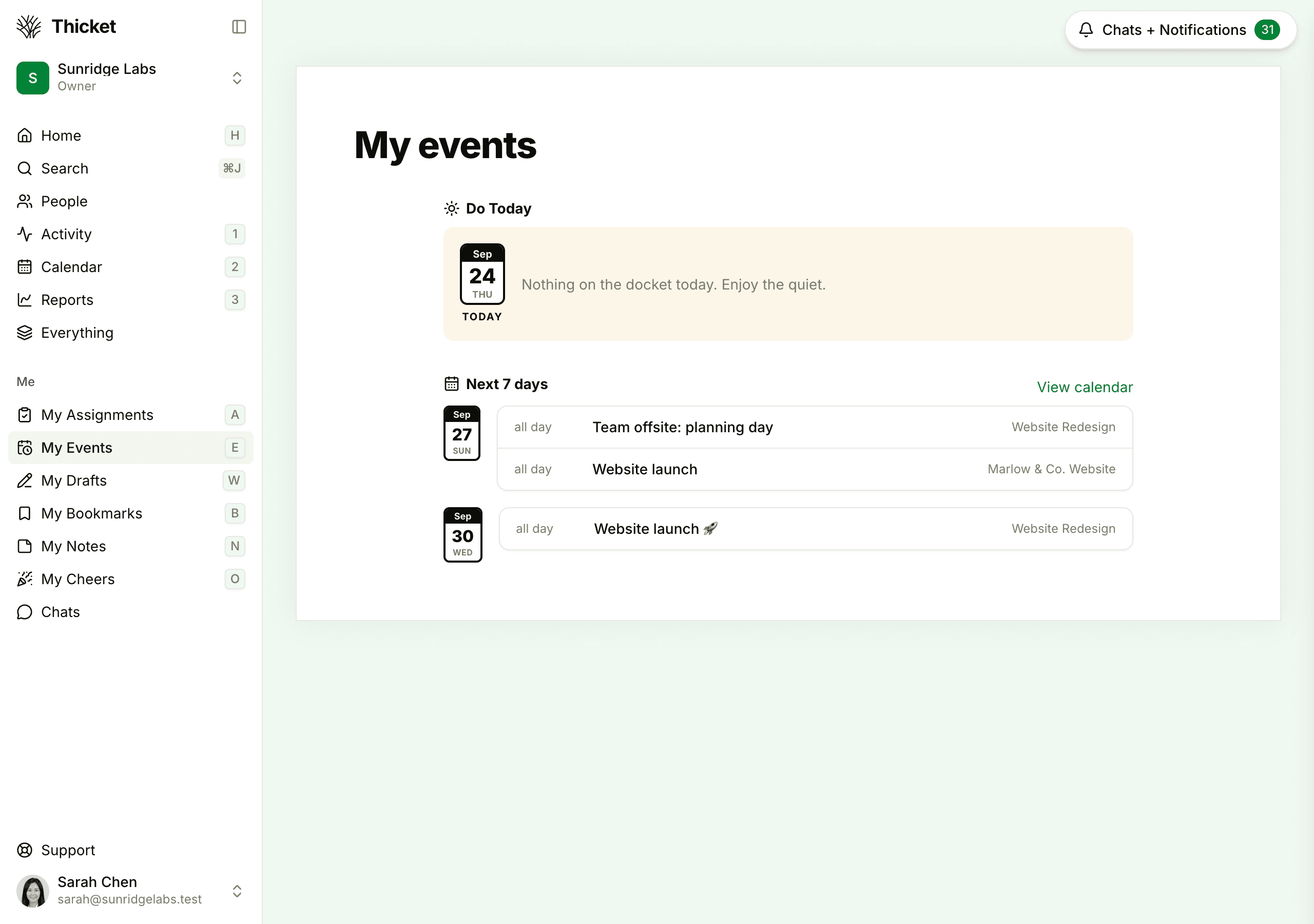
- Do Today: your events for today, plus the to-dos and cards assigned to you that are due today. Tick an item's box to complete it right there. Press Shift+I to jump straight to this list. On a clear day it reads "Nothing on the docket today. Enjoy the quiet."
- Next 7 days: the events you created or were invited to, from today through the next seven days, grouped by day. Each row shows the event's time (or "all day") and its project, or Account calendar for events outside a project. View calendar opens the calendar showing just your events. See Schedule and Events.
When one of your timed events starts within the next 20 minutes, a card appears at the bottom left of the screen with a countdown, like "Starts in 12 minutes". Click Join to open the event's meeting link, if it has one, or View event to open it. Closing the card hides it for that event in the current browser tab. Clients don't get this card.
My Notes
My Notes is a notepad for anything you want to keep handy: ideas, meeting prep, a running list of links. The page says "Only you see this." No one else can open your notes, owners and admins included, and each Thicket account you belong to has its own notepad.
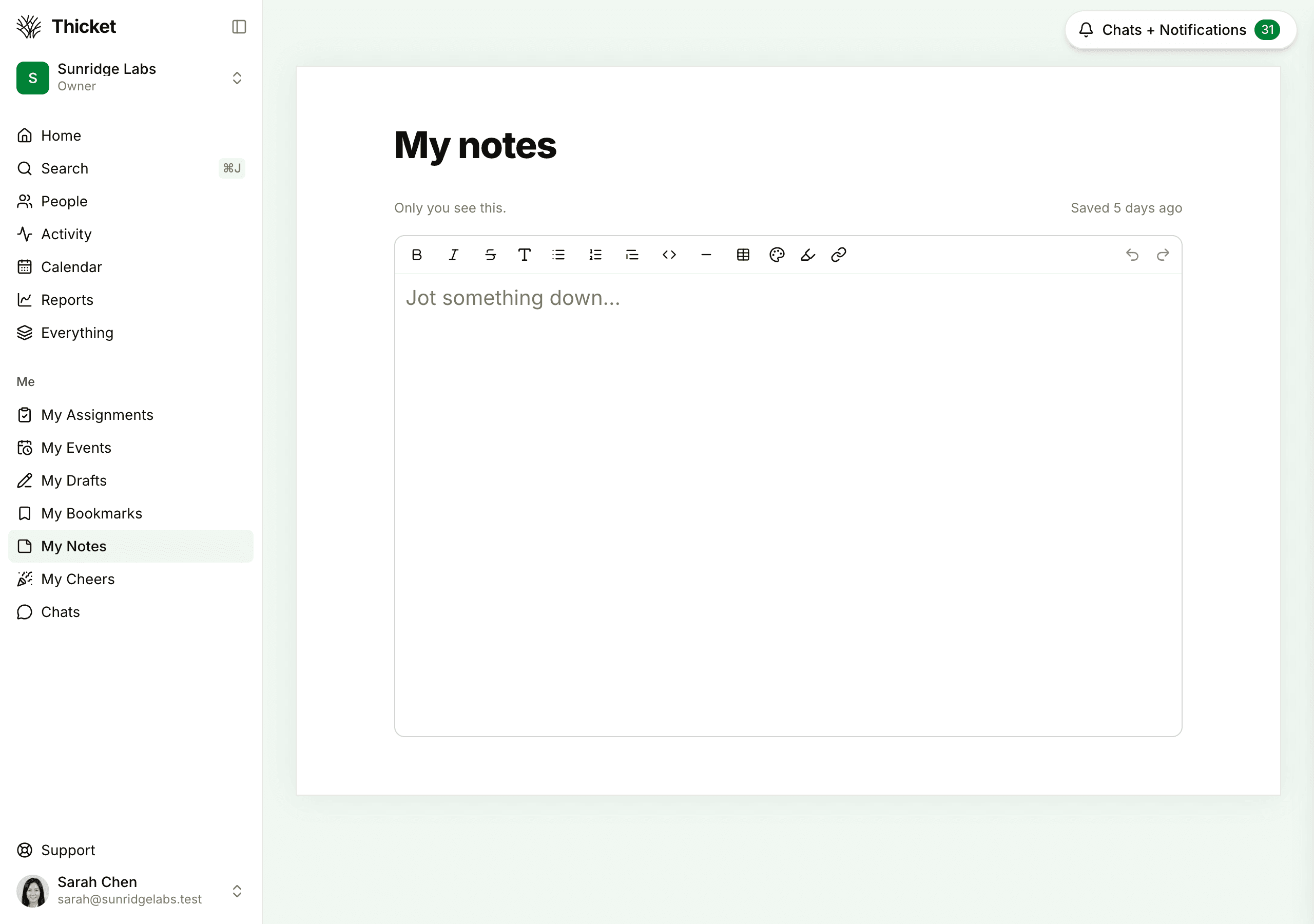
There's no Save button. Thicket saves a second after you stop typing, when you click outside the notepad, and when you leave the page. The status at the top right reads Saved with the time, or Unsaved changes, Saving…, or Couldn't save. Trying again… while it catches up. To save immediately, press ⌘S (Ctrl+S on Windows). The notepad has the same formatting toolbar as the rest of Thicket (see Formatting Text).
If you change your notes in another tab or on another device, this page loads the newer version instead of overwriting it, and tells you it did.
Thicket keeps one earlier version of your notes as a safety net: how they looked when you started your current round of editing (a break of more than 30 minutes starts a new round), or just before you deleted most of the text. Click Restore previous version to swap back to it. Clicking it again undoes the restore. The button only appears once there's an earlier version to go back to.